
Get Started with Two-Step Login: Quick Guide
Streamlined guide on how to set up Two-Step Login for the first time
This article applies to: Two-Step Login
First Time Setup for Two-Step Login
- Create your account by signing in at Manage Your Two-Step Login.
- Log in with your NetID and Password.
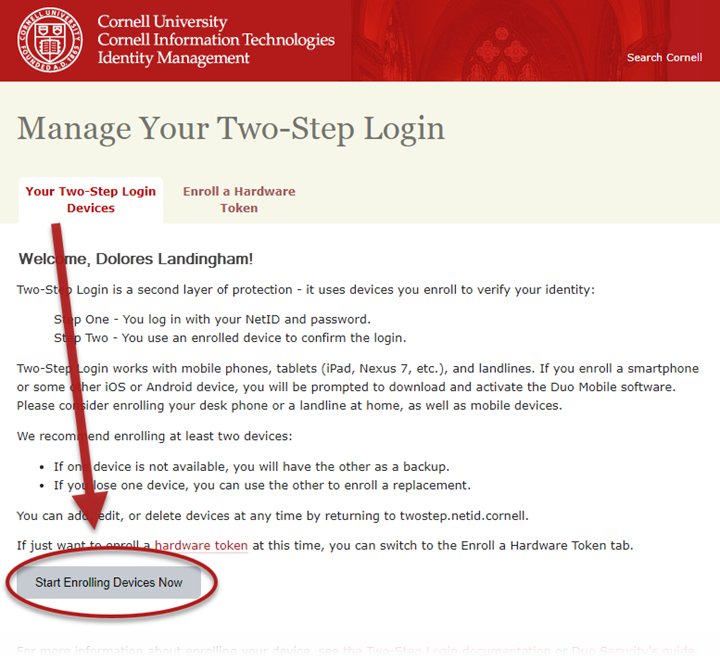
- Select Start Enrolling Devices Now. If you would like to enroll a hardware token, click the Enroll a Hardware Token tab and follow the instructions on that screen instead of continuing here. For more information about hardware tokens, visit Hardware Tokens for Two-Step Login.
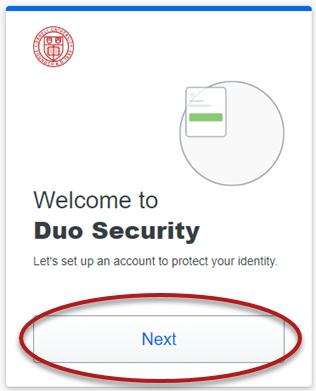
- At the Duo welcome screen, click Next. ("Duo" is the name of the IT security service supporting the Two-Step Login service.)
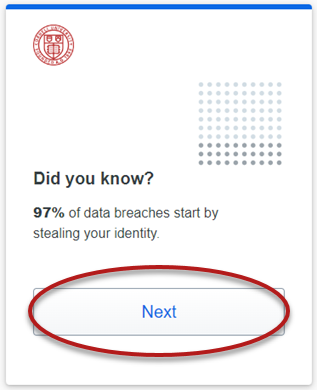
- Duo will provide additional information about online security on the next couple of screens. Read this important information and click Next to advance at each screen.
When you reach the Select an option screen, select .
For first-time setup, use the Duo Mobile app with Cornell’s Two-Step Login. Otherwise, you could end up unable to log in to Cornell services.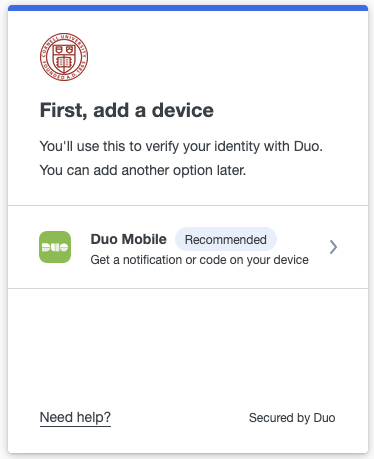
- Duo will guide you through the setup process.
Full details on the process can be found in the Two-Step Login Setup Guide.
Add A Backup Device
After you finish enrolling your first device, you'll be able to use Duo and log in to Cornell systems. What happens if you forget your phone at home, and you need to log in?
Follow these instructions to set up a second option.
Continue Using Two-Step Login
- Learn how to Log In using the device you chose
- Enroll additional devices as a backup for your main device
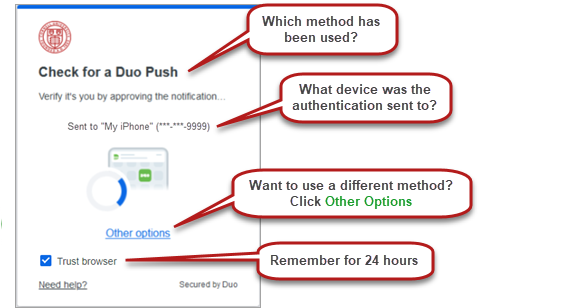
- Want to use a different method? Click Other options for more choices from those you have set up.
- Reduce how often you need to authenticate by selecting Trust browser when you log in.
If you switch to Secure Connect, keep in mind that Duo Mobile Push, USB security key, or hardware token methods must still be available as a backup, even if you use Secure Connect regularly.
Support Contact:
Cornell IT Service Desk
Normal Business Hours: Monday-Friday, 8am-6pm (Eastern Time)
Open a ticket (24x7 support)
Emergency Service Disruptions: After Hours Support
Comments?
To share feedback about this page or request support, log in with your NetID