
Manage Your Box Storage
Managing the amount of data you have in your Box account will prevent unexpected problems.
This article applies to: Box
Check Your Current Storage
Departmental Box Accounts
Box departmental folders have a default storage capacity of 50GB. Use these instructions to check your departmental folder’s current capacity.
You can request more if your department needs additional space.
Individual Box Accounts
Most Box accounts have a quota of 25 GB of storage. If your account reaches its storage limit, Box won’t allow you to upload or create files until space is cleared, or you request more space.
To check your storage amount:
- Log in to Box with your Cornell credentials.
- In the upper right, click your profile icon.
- Select Account Settings.
- Scroll down to Account Details.
The amount of space your content is using is shown under Storage Used.
How to Remove Unused Content
If you would like to free up some space, you can remove files from your Box account.
When in All Files in Box, click the UPDATED header until the oldest content is on top. Only files that belong to you count against your quota.
Don’t delete content belonging to other people unless you consult with them.- To see who owns a file or folder:
Hover over the file or folder row and click the checkbox on the right.

Click the Details tab that appears on the right of your file list. Look for the Owner field. (If Details doesn’t show up, make sure you only have one line selected.)
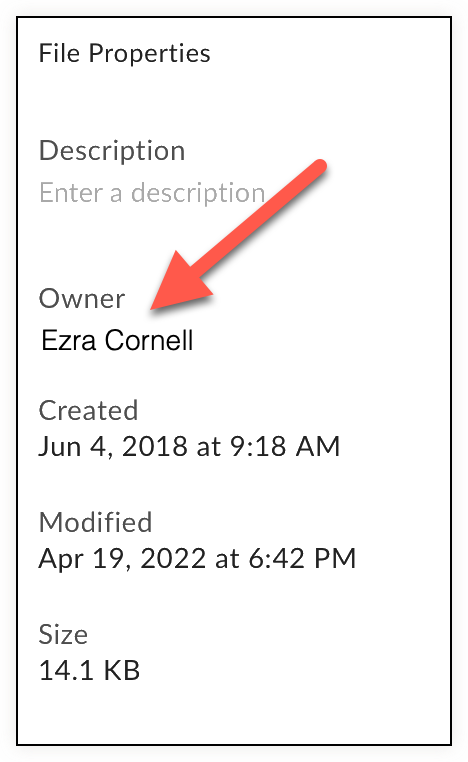
Remember, only files that belong to you count against your quota.
- You can also sort by SIZE to view the largest files and folders.
- To delete files and make space available, move them to the trash. Items in trash do not count toward your storage limit, and will automatically be removed permanently after 30 days.
- If you want to keep a copy of your files, but you don’t need frequent access to them, see what options you have to Move Your Data Stored in Box.
Files shared with you do not count against your storage limits.
Comments?
To share feedback about this page or request support, log in with your NetID