
Surveys Lite (Microsoft Forms) in Teams
Microsoft forms can be shared with Teams groups to ensure continued access, use, maintenance, and results.
This article applies to: Microsoft Teams , Surveys Lite (Microsoft Forms) , Surveys
Use Microsoft Forms to create surveys, quizzes, and polls for collecting and analyzing feedback. Forms offers a variety of question types and lets you:
- See responses in real-time.
- Use built-in analytics to evaluate responses.
- Export results to Excel.
Best practice: Create shared forms in Microsoft Teams
When creating a new form, consider who will own and manage it. As roles and responsibilities evolve and team members change, multiple owners can seamlessly continue supporting services that depend on insights from forms.
- Individual Owner: If the form and its results will be utilized solely by the person creating the form, build and run the app in the individual's Microsoft Forms workspace.
- Teams Owners: If the form and its results will be used, maintained, or reviewed by a unit, department, project team or other group, create it in a Microsoft Teams group where multiple owners can access and manage it.
Create a Teams-owned form
- Open Microsoft Teams and navigate to the appropriate group for this form.
- Choose the button at the top of that group.
- Select from the available Apps; expand the view if Forms is not immediately visible.
- Create and edit the new form.
This method puts the link for the shared form at the top of the group so members of the team can easily access and manage the form and its results. Group owners can determine other locations for tracking forms if the number of top links grows unwieldy.
Move an Individual's Forms to Teams
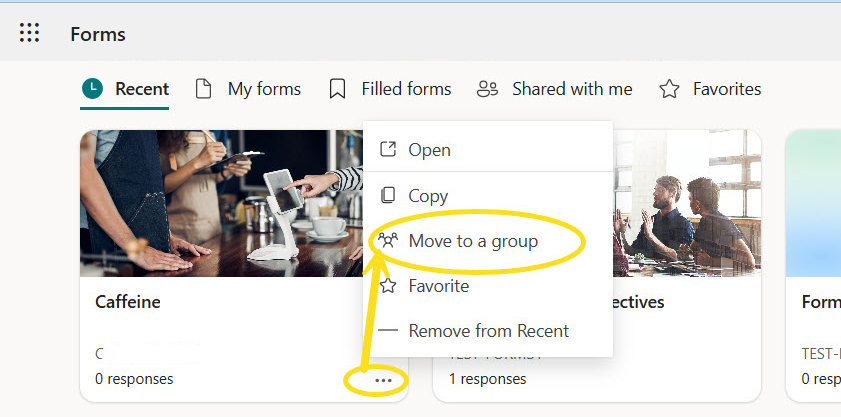
Forms originally created and managed by an individual can be moved to joint ownership in Teams. Individuals can request to join Teams before sharing a form with that group, or the individual can create a new group in Teams before sharing the form.
- Open the Microsoft Forms workspace using your Cornell login and find the appropriate card for that form.
- Select () on the card for that form.
- Choose .
- From your list of Teams, choose the group to own this form.
- Confirm the move.
Find Teams-owned forms
Forms for individuals and Teams can be found in the Microsoft Forms workspace.
- Open Microsoft Forms workspace.
- Individual forms often appear first. Scroll past those cards.
- Look to the bottom of the page for My groups.
- Select the appropriate group to reveal the shared forms for that Teams group.
Use tabs to track individual forms moved to Teams
When institutional shifts or external opportunities result in individuals changing units or organizations, the easiest way to track an individual form that has been moved to a shared Teams group is by creating a tab for it.
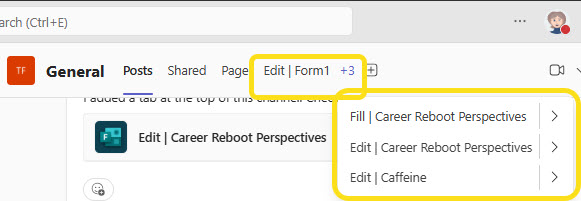
In the example above, the General channel in a Teams group was selected for the additional tabs for shared forms. For multiple form moves, consider creating a separate Forms channel inside the Teams group and adding all the newly shared forms to this channel.
To add forms as tabs:
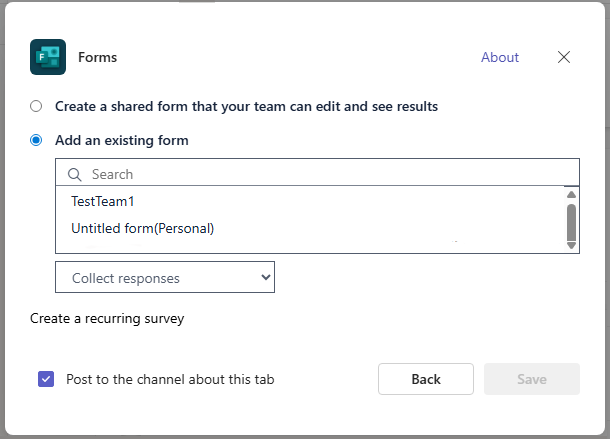
- At the top of a channel in Teams group, select the button.
- Choose .
- Choose an activity from the drop down list that begins with Collect Responses.
- The preferred activity for a shared form is usually , which displays in a tab as Edit.
- displays in the tab as Fill.
- displays in the tab as Results.
- .
For additional details about forms and sharing ownership, see the vendor's documentation at:
Comments?
To share feedback about this page or request support, log in with your NetID