
Determine Content Affected by Video on Demand Media Retention Policy
To keep content Video on Demand content from being degraded or removed, content owners should periodically review which content is going unplayed.
This article applies to: Video on Demand
To keep content Video on Demand content from being degraded or removed in accordance with media retention policies, periodically content owners need to review which content is going unplayed.
- Content left unplayed for two (2) years will have its transcode “flavors” removed, possibly degrading or preventing its playback.
- Content that has not been played for four (4) years or more will be removed entirely.
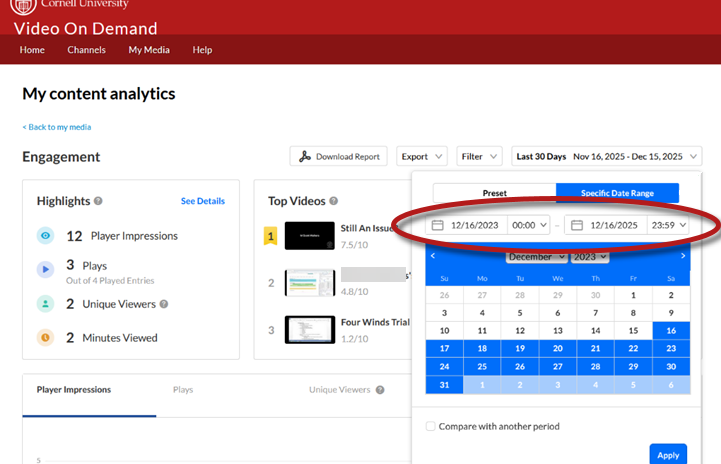
For example, set a starting date two years and a month before the current date to identify media that will be affected a month from the current date.
In this way, the Top Videos report in Video on Demand’s Content Analytics can help give you some insight into media play counts that determine media retention.
Create a Top Videos report
To generate a Top Videos report:
- Sign in to Video on Demand. (If not signed in, click Guest, then select Login from the dropdown menu.)
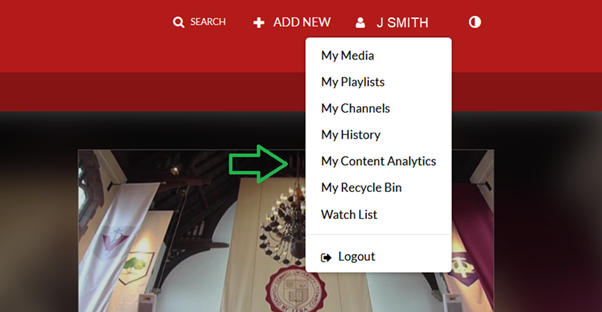
- Select your user profile (your name).
From the dropdown menu, select My Content Analytics.
On the My Content Analytics page, set a date range for your report. Type a date just under two (2) or four (4) years in the past as the starting date (left side date), and the current date as the ending date (right side date).
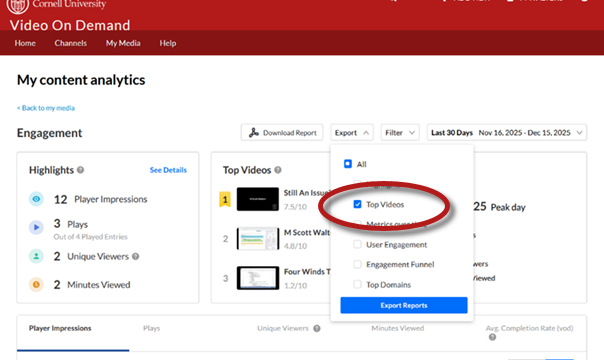
Select Export, then check the Top Videos category and click Export Reports.
- Video on Demand will confirm your report export. Select Export via email.
- Check your Cornell email for the report, which will be a spreadsheet in .CSV format. (In some browsers you may need to approve the download to save the file to your local device.)
- Open the report with Excel or another spreadsheet application.
- Review the main area of the spreadsheet (below the second row containing “#------------------“). The Total Plays column provides the count of plays for each media item. As
Interpreting the Report
Next, as you review the report, note that:
- Content showing greater than zero plays will not be degraded or removed;
- Content showing zero (0) plays may be degraded or removed;
- Content not appearing in the report may be degraded or removed.
For media in the last two categories, you can play it to “reset the clock” on flavor removal or deletion. See the next section for details.
Preventing Content from Being Removed or Degraded
The Video on Demand vendor suggests that playing a media item for ten (10) seconds or more will register a play and keep it from being deleted or having flavors removed.
- Sign in to Video on Demand. (If not signed in, click Guest, then select Login from the dropdown menu.)
- Select your user profile (your name).
- From the dropdown menu, select My Media.
- Refer back to your Top Videos spreadsheet.
For each media item that either:
- has a zero (0) in the spreadsheet Total Plays column, OR
- does not appear in the spreadsheet,
go to that video’s page in Video on Demand and play the media for at least ten (10) seconds to register a play and “reset the clock.” This will prevent:
- deletion for another four years, or
- flavor removal for another two years.
Restore Transcode Flavors
To restore the transcode flavors for a media item:
- Sign in to Video on Demand. (If not signed in, click , then select from the dropdown menu.)
- Select your user profile (your name).
- Select .
- Select the title of the affected media.
- Select select .
- Select the tab.
- Click .
Media Retention Workflow
Under Video on Demand media retention policies, the following steps occur when media is not played for long periods of time:
- Media is current (has been played for at least 10 seconds at least one time during the last two years).
- After two (2) years of not being played:
- Media loses Transcode Flavors (possible degraded or impaired playback). To restore them, see the above section Restore Transcode Flavors.
- After four (4) years of not being played:
- Media is removed to the Video on Demand Recycle Bin.
- After thirty (30) days in the Recycle Bin:
- Media is permanently deleted from Video on Demand.
Comments?
To share feedback about this page or request support, log in with your NetID