
Forwarding Email From Microsoft 365 to Cornell Google Workspace
All Cornell email first arrives to Cornell Microsoft 365. If you have both a Cornell Microsoft 365 mailbox and a Cornell Google Workspace mailbox, where your email is then delivered depends on how your M365 mailbox forwarding is configured. It must be configured as described below for your email to reach your Cornell Google Workspace mailbox. If you have only a Cornell Google Workspace mailbox, the email system takes care of delivering to that mailbox automatically... there is nothing you need to, or can, do.
This article applies to: Cornell Google Workspace for Faculty and Staff , Cornell Google Workspace for Students , Outlook on the Web
To Forward From Microsoft 365 To Cornell Google Workspace
- Log in to Outlook on the web.
- In the red, Cornell-themed toolbar, click the Settings (gear) icon.
- In the right column, click Mail (it may already be selected).
- In the center column, click Forwarding.
- Click Enable Forwarding.
- Under Forward my email to, enter
netid@g.cornell.edu<-- The second half of the address is “g.cornell.edu”, not just the normal cornell.edu.
replacing netid with your actual NetID. - If you leave Keep a copy of forwarded messages checked, you will be able to read/reply/manage your messages through either your Microsoft or Google account. Actions you take (such as deleting a message) will NOT affect the same message in the other account. If you UNcheck Keep a copy of forwarded messages, you will be able to work with your mail only through your Google account. CIT recommends you leave this checked.
- Click Save.
Now your messages will automatically forward to your Cornell Google Workspace account.
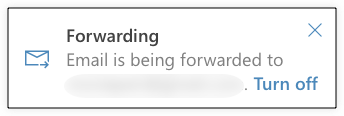
Use the X to close the dialog box. Clicking “Turn off” will stop your email forwarding completely; it will NOT silence this dialog box forever. (See our Persistent Forwarding Alert article for more details.)
To Stop Forwarding To Cornell Google Workspace
- Log in to Outlook on the web.
- In the top toolbar, click the Settings (gear) icon.
- In the right column, click Mail (it may already be selected).
- In the center column, click Forwarding.
- Uncheck Enable Forwarding.
- Click Save.
Your email will now arrive only to Microsoft 365.
Comments?
To share feedback about this page or request support, log in with your NetID