
Report Suspicious Email
Report suspicious messages in Microsoft Outlook and Gmail with the tap of a button.
This article applies to: Security & Policy
Previously, suspicious emails were reported either by forwarding them to the IT Security Office or by using a third‑party tool called PhishAlarm. Forwarding messages could result in unnecessary replies, and PhishAlarm will be retired in support of Resilient Cornell goals.
This spring, Cornell community members can choose to use either PhishAlarm or the native reporting tools built into Outlook or Gmail for tagging suspicious email. After May 29,2026, only the native tools will be available to flag phishing messages or junk mail.
How to use built-in reporting tools
Outlook
The button to report emails may need to be added to your toolbar.
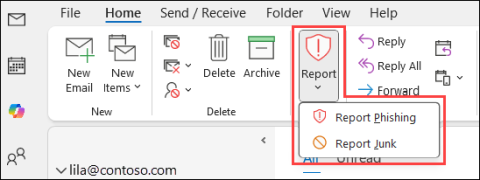
- Select the suspicious message in your email client, then click Report.
- You can optionally select "Report Phishing" or "Report Junk".
- Reported as junk: The messages are moved to the Junk Email folder, and the sender is automatically added to the user's Blocked Senders list.
- Reported as phishing: The messages are deleted and placed in your deleted items folder.
- If you accidentally select a legitimate message and reported it, you can find it in your Deleted Items or Junk folders. Move the message back to your inbox to undo the action.
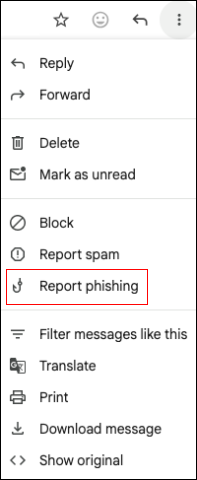
- Open the message.
- Next to Reply, click the three dot icon (More).
- Click Report phishing or Report Spam.
Legacy, LTSC Outlook and unsupported email clients
Legacy and LTSC Outlook versions do not have access to built-in reporting buttons. This is also the case for other unsupported email clients. If you use one of these tools, please continue to forward suspicious email reports to the IT Security Office by emailing: itsecurity@cornell.edu.
Why use built-in reporting tools?
- Easy and quick to use — faster than forwarding emails manually to the IT Security Office (ITSO).
- Includes useful data - reporting suspicious emails automatically includes helpful data about your message such as message headers which show the path the email took to reach Cornell's email servers. This data is invaluable and findings and preventing phishing attacks.
- Helps the ITSO triage response and trains filters — reporting suspicious emails helps the ITSO triage and group similar suspicious emails together and can automatically adjust email filters to prevent more suspicious messages from reaching the Cornell community.
- Reduces email replies from the IT Security Office —The IT Security Office appreciates Cornellians' diligence in reporting these messages. To respect your time, we will not email you a reply unless we want to suggest additional protective steps.
- Strengthens auto-response reaction —Build muscle memory with continued use. Reporting a phishing message reinforces the quick action needed for immediate cyber threats: recognize it, report it, move on.

Phish Reporting Improves Digital Security
Thanks to the thousands of phishing reports by Cornellians over the last 7-10 years, the IT Security Office has been able to block or mitigate serious intrusion attempts that could have compromised Cornell individuals and resources.
Speeds up Threat Detection and Response
Native reporting tools in Microsoft Outlook are tightly integrated with other Microsoft solutions utilized by the IT Security Office that analyze Cornell phishing reports alongside real‑time national and global threat intelligence. This helps the IT Security Office quickly determine how dangerous a suspicious message or campaign may be and take action to protect the campus.
When community members use Gmail’s built‑in reporting features, those reports help improve Gmail’s own detection and filtering capabilities—making that platform better at blocking similar messages in the future.
Quarterly Phishing Simulations Can Improve Reactions to Suspicious Email
To continue helping the Cornell community understand how to identify suspicious messages, the IT Security Office also engages in quarterly phishing simulation training. Use the built-in tools to identify the simulated phishing messages as well as actual threats.
If you have further questions, please email them to itsecurity@cornell.edu.
Comments?
To share feedback about this page or request support, log in with your NetID