
Troubleshooting NetID Password and Common Issues
This article applies to: NetIDs
This article provides an overview of common NetID password issues and general troubleshooting steps. If problems persist, please contact the IT Service Desk.
Mistyped NetID or Password
- Check the Caps Lock indicator on your keyboard before typing your password; if the Caps Lock key has been pressed, your password might not be recognized. Uppercase and lowercase letters need to be typed exactly the same way every time you use the password.
- Retype your password slowly. It's easy to mistype a password. NetID passwords are sixteen characters at least and may include uppercase, lowercase, and special characters, and the password is not displayed as you type it.
- Check that you typed your NetID exactly. NetIDs must be typed with all letters in lowercase only.
- Make sure that you entered a NetID (letters followed by numbers) rather than an email address or alias.
NetID Password Lockout
You may be unable to log in to your computer using a new NetID password (created at Manage Your NetID) if you reset the password while off campus. (This issue only affects individuals whose units are using Active Directory authentication for computer log on purposes.)
The issue is caused by a password mismatch between the new password and the locally stored password on a Windows computer (known as cached credentials). The passwords are out of sync. You can continue to log on to the computer desktop using the old password, but you'll have to use the new password for authenticating to services with your NetID.
If this is the case, you may get a pop-up notification that says "Windows needs your current credentials. Lock the computer then unlock it using your most recent password or smart card."
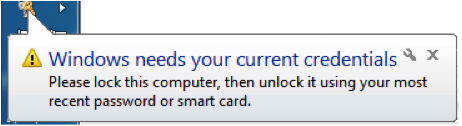
You may be prompted for a password when accessing a network resource such as a file share.
How to Solve this Problem
To resynchronize the locally cached credential:
- Log on on to the desktop using your old password.
- Connect to the campus network by connecting to VPN.
Lock the desktop by pressing Window-L (on your keyboard) or clicking Start -> Lock.

- Log back into the desktop using the NEW password. This will refresh the locally stored credential.
When logging in, I received a message that I need to change my password to avoid being locked out
When logging in, I received a message to change my Cornell password to avoid being blocked. Why did I receive this message?
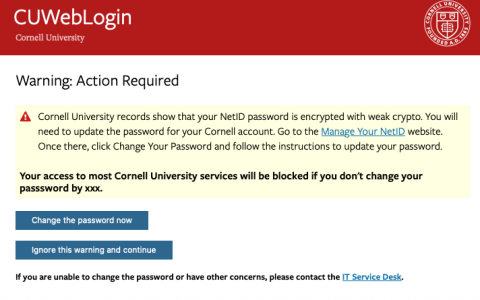
In 2024, Cornell began enforcing a stronger level of password encryption on NetID passwords to protect the community from cyberattacks.
Changing your password resolves the situation.
What You Need to Do
To update to better encryption, change your NetID password.
- Go to the Manage Your NetID website (you can also get there by clicking on the login warning page).
- Login and authenticate as required.
- Click . Follow the instructions provided to change your password.
Password Doesn't Work
If you type in the same password as always, but you get an "incorrect password" message no matter how carefully you check and retype it, your password may have been stolen. The person who stole it may have changed your password to block you from access to your own email and other services. This situation should be reported immediately.
Start by reading CIT's pages on how to spot NetID password theft, then proceed as advised.
I Have a Problem with My NetID Password. What Should I Do?
Passwords are protected with strong encryption and cannot be retrieved or viewed by anyone — including Cornell IT administrators and support representatives.
If you have set a recovery email or security question, go to the NetID recovery tool, enter your NetID, click , then follow the process.
If you have not set up a recovery email address, you are strongly encouraged to do so at your earliest convenience.
When Can I Not Use a Recovery Email Address?
The recovery email option is not available if any of the following happened:
- You forgot your password and have not yet set a recovery email address.
- Your account has been hijacked by a hacker who logged in as you and changed your password and recovery email address.
- The IT Security Office determined that your password has been compromised, and scrambled it to stop further abuse. For more information and a possible automated recovery option, see If the Security Office Locks Your Account After Detecting It's Compromised.
In these cases, you will need to request a new activation code so that you can reset your password.
To make this request, please fill out this form. To prevent NetID theft, you may need to provide proof of identity on a video chat. Valid proof of identity includes your Cornell ID card or a government-issued photo ID card (for example a driver's license or passport).
As soon as you have reset your password, if you have not already done so, you should consider setting up a recovery email address so that if you have trouble with your password again, you can set a new password yourself.
NetID: Password Accepted but Still Can't Get Access
You may see a message like "access denied" or "You don't have permission to access this service."
- If the service you are trying to access is one you have never used before, verify that you were given the correct access information and that your access privileges have been set up.
- If the service is one you usually use, it may be experiencing a temporary problem.
- If your role at the university has changed--for example, you have graduated or moved to a new job--your authorization to access services may also have changed. Contact the department that offers a particular service to inquire. If you're not sure where to start, contact the IT Service Desk.
Comments?
To share feedback about this page or request support, log in with your NetID