
Add a Zoom Room to an Outlook Meeting
This article applies to: Zoom
When you schedule a Zoom meeting for a course, it’s important also to book the Zoom Room as a location for your recurring course meeting. You can do this by using Outlook to send an invitation to the Zoom Room.
Download the Outlook Calendar (.ics) File
From Canvas
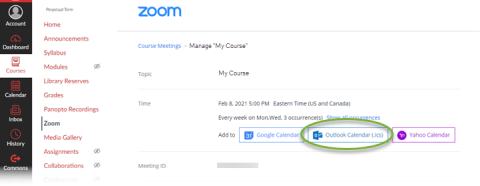
- Open the scheduled course meeting in your Canvas Zoom interface.
- Open your course and click the Zoom tab.
Click Outlook Calendar (.ics). Zoom will prompt you to save the download file.
From the Cornell Zoom Website:
- Log in to Cornell Zoom
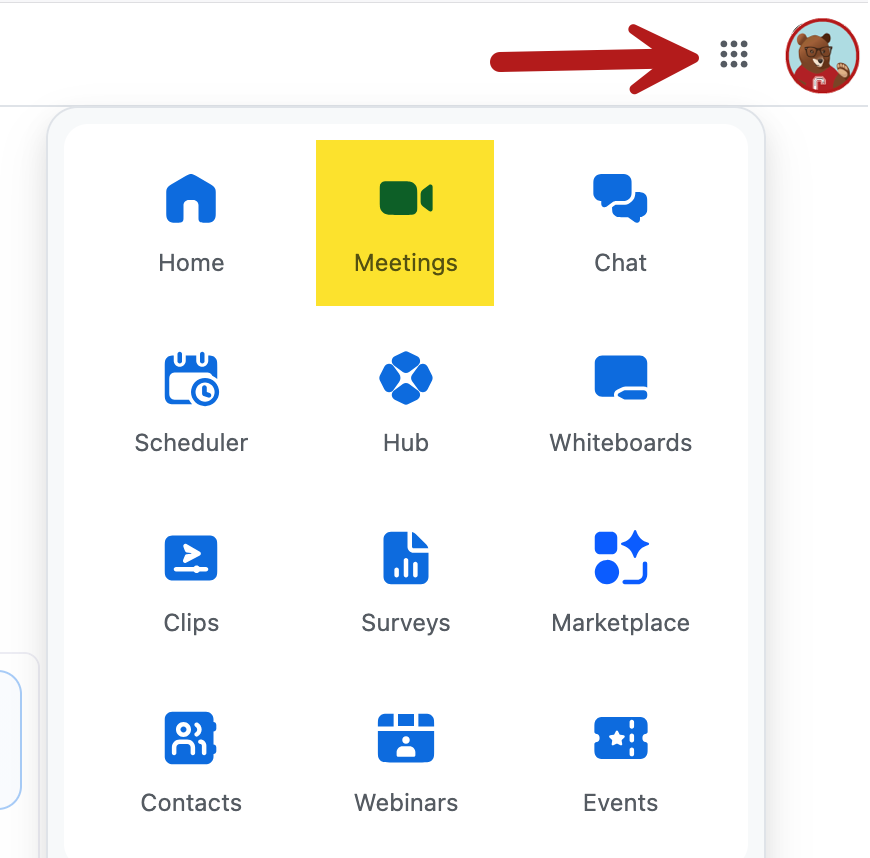
Click the nine-dot menu and then click Meetings.
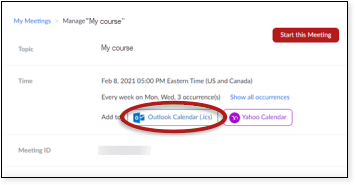
- Under Upcoming Meetings, find the course meeting and click its name to open.
Click . Zoom will prompt you to save the download file.
Reserve the Zoom Room in Outlook
- Browse to the location of the saved .ics file and open it. You may be able to do this by clicking the file name in your browser download bar. Otherwise, go to the folder where you saved the .ics file and open it.
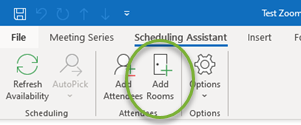
- This will open a new Outlook appointment with the Zoom meeting details. Click Scheduling Assistant.
Click Add Rooms.
Use the Search field to find the Zoom Room’s name. Click the name to select it.
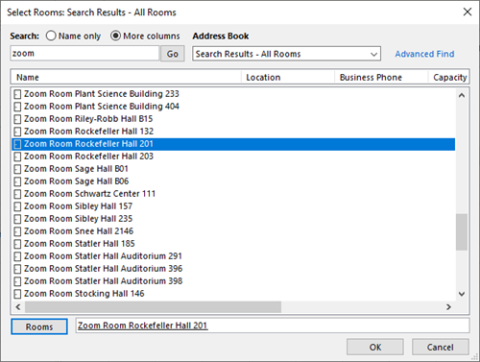
- Click Rooms to add it to the Rooms field, then click OK to return to the meeting screen.
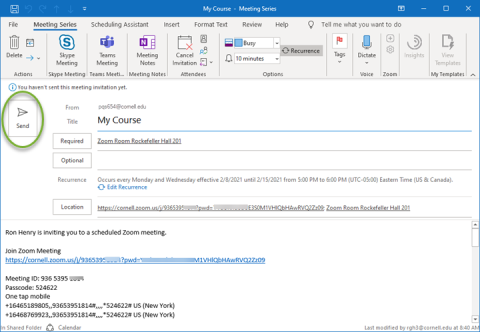
Click Send to book the Zoom Room for the course meeting and save the appointment to your calendar.
Comments?
To share feedback about this page or request support, log in with your NetID