
Recording and Live Transcription for Teams Meetings
This article applies to: Microsoft Teams
Record a Teams Meeting
Any Teams meeting or call can be recorded for future viewing. The recording captures audio, video, and screen sharing activity, and you can share it securely with others at Cornell. Recordings won't capture whiteboards, annotations, shared notes, or videos or animations embedded in PowerPoint Live presentations. When viewing a meeting recording, you'll see no more than four peoples' video streams at once.
For more information, see Microsoft's Record a meeting in Teams.
Use Live Transcription
To improve accessibility and provide better context after meetings for notes that were taken in the meeting, live transcription is available in Cornell Microsoft Teams.
During any Teams meeting, you can start a live transcription of the discussion. The text appears alongside the meeting video or audio in real time, including the speaker's name (unless they chose to omit it) and a time stamp.
In addition to better accessibility and support for notes, live transcription also is useful for attendees that have different levels of language proficiency and participants who are in noisy places. The feature is only available in the desktop version of Teams.
- See Microsoft's instructions for how to turn on Live Transcriptions
- See how to keep your identity from being included in meeting captions and transcripts
Expiration Dates and Recording Locations
Expiration Dates
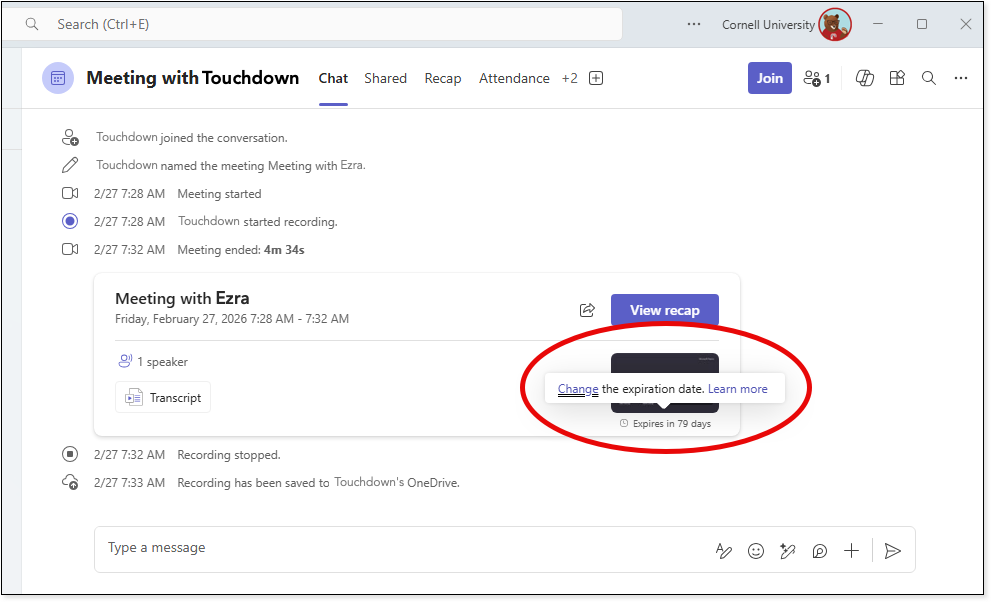
Teams recordings expire after 120 days. They then move to the recycle bin for 90 days. Up until this point (210 days) you can restore the recording. After that they cannot be restored. Meeting organizers can choose to change the expiration date, opting for longer or shorter expiration dates, including removing the expiration entirely.
When you see the meeting recap notification, mouse over the Expires in XX days option, which will display Change the expiration date. Click and enter the new date.
Recording Locations
Standard meetings (scheduled through Outlook or the Teams calendar)
Recordings are stored in the organizer's OneDrive. (Look for the Recordings folder).
Channel meetings
Recordings are stored in the Recordings folder of the Teams channel they were scheduled.
Comments?
To share feedback about this page or request support, log in with your NetID