
Microsoft 365 Email/Calendar on iPhone/iPad
This article applies to: Email @ Cornell , Microsoft Outlook
If you follow this recommendation, you do NOT need the rest of the information presented here.
If you ignore our advice and choose to use iOS’s native mail app, follow the steps below to configure your device for the Cornell environment.
Use Outlook on your computer or Outlook on the web to accept or decline meetings.
Delete Your Cornell.edu Profile or Old Exchange Account
If you have never connected to your Cornell account on this device, skip to the next section, Add a Cornell.edu Exchange Account.
Check for both an Exchange Profile and an Exchange Account as shown here, deleting whichever you find. You will probably find only one of them. That’s okay.
Profile
- Select Settings.
- Select General.
- Select Profile.
- Select your Cornell University Exchange Profile.
- Select Remove Profile.
- Enter your passcode to confirm.
- Select Remove.
Account
To remove an account in the newest version of iOS:
- Select Settings.
- Select Apps.
- Select Mail.
- Select Mail Accounts.
- Delete your Cornell University Exchange Account.
To remove an account on older versions of iOS:
- Select Settings.
- Select Accounts and Passwords.
- Delete your Cornell University Exchange Account.
Add a Cornell.edu Exchange Account
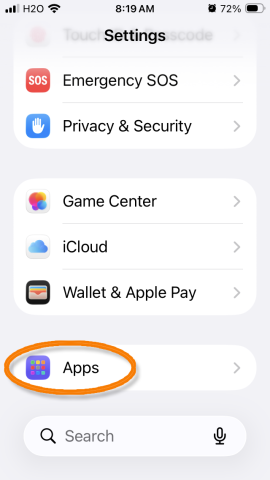
Under Settings, select Apps.
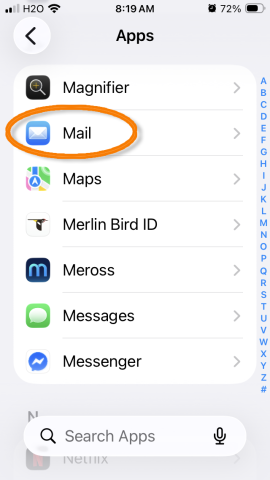
Select Mail.
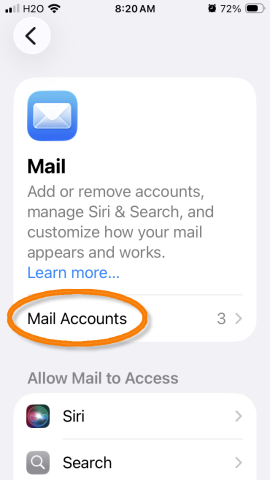
Select .
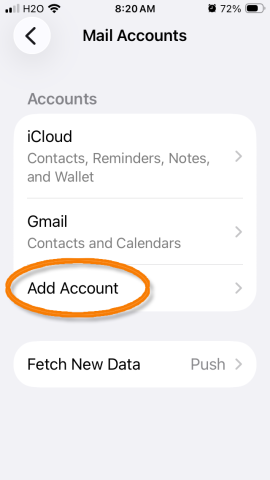
Select Add Account.
Enter your
netid@cornell.eduemail address. Then select .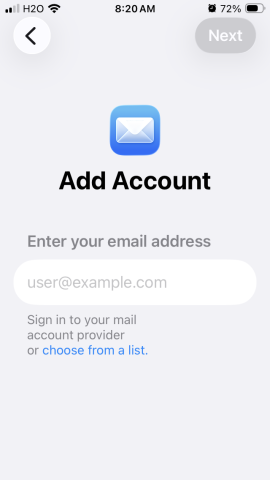
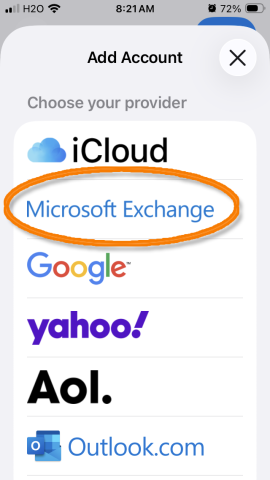
Select Microsoft Exchange.
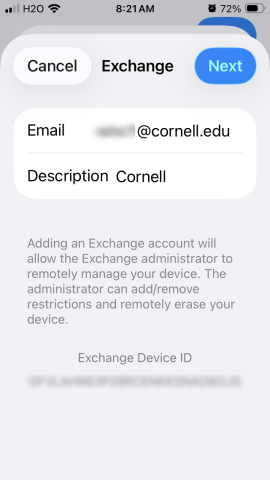
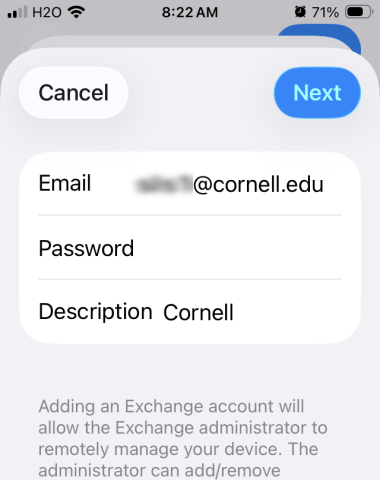
Enter your Cornell email address.
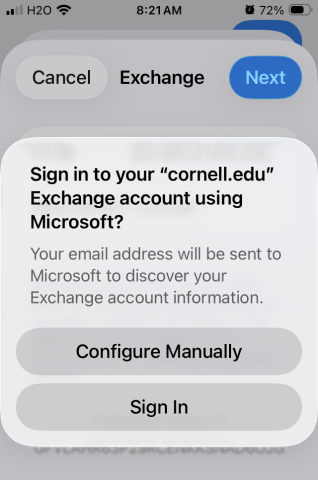
Select Sign in.
Enter your Cornell Password, then select Next.
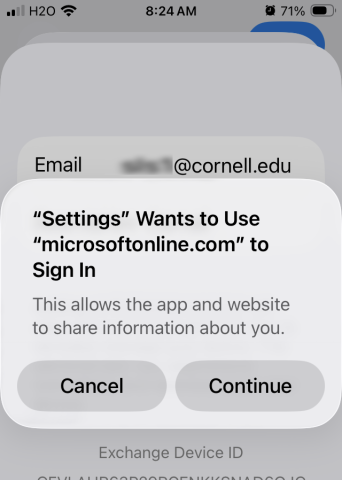
Select Continue.
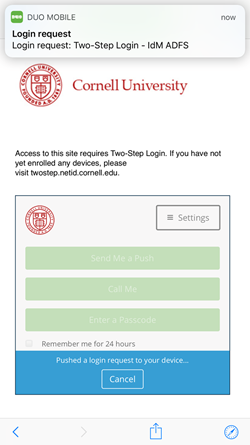
- If you have already opted in to Two-Step Login for Office 365, it will prompt you to authenticate.
- Select Accept, to allow iOS Accounts to Access your Mailboxes, Sign You In, and read your profile.
Set Your Cornell Account as the Default (optional)
If your Cornell email account is the only email account on your device, you are done.
If you have more than one account and you don’t want your Cornell account to be the default account, you are done.
If you have more than one email account on your phone AND you want your Cornell account set as the default account, complete the steps below.
- From the Home Screen tap .
- Tap and then select .
- Tap .
- Select as your default account.
Contacts
- From the Home Screen tap , then tap .
- Tap and then select .
- Select as your default account.
Calendar
- From the Home Screen tap .
- Tap and then select .
- Tap .
- Select as your default account.
Comments?
To share feedback about this page or request support, log in with your NetID