
Set Up OneDrive for Apps on Demand/Workspaces Applications
This article applies to: Apps on Demand
You will need to do this only once.
We assume you have signed in to Apps on Demand and opened at least one app.
- In the AppStream navigation bar, click (the open folder icon).
A My Files dialog box will open.
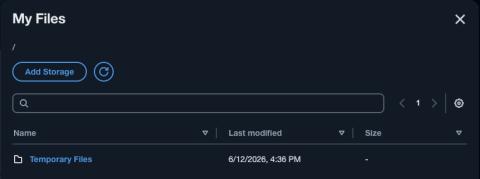
Click .
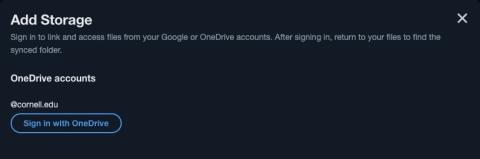
- Click Sign in with One.
- log in with Cornell Single-Sign-on
Now when you click My Files (the open folder icon in the AppStream navigation bar), you'll see OneDrive as a choice.
When opening or saving documents through apps running in AppStream, you can browse to your OneDrive files by clicking , then , then .
Comments?
To share feedback about this page or request support, log in with your NetID