
Copilot Basic in Microsoft Outlook
The free version of Copilot offers many options when you access it from Outlook.
This article applies to: Microsoft Copilot Basic , Microsoft Outlook
Activate (or Deactivate) Copilot
- Go to Outlook on the Web
Go to and click (This may also appear as .)
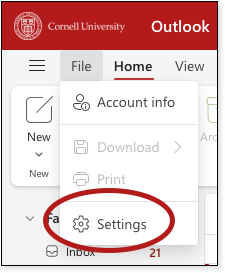
Click , then toggle Copilot on (or off)
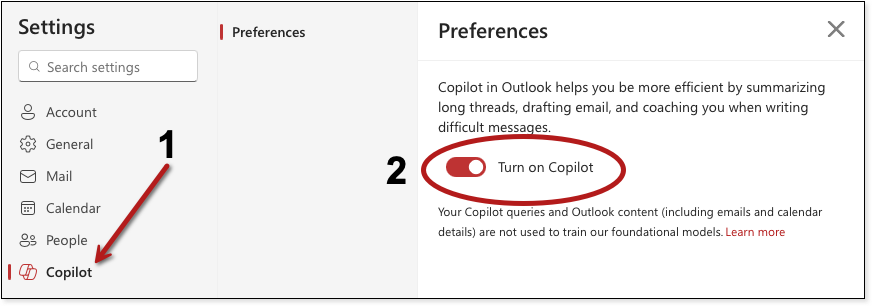
(This example shows Copilot turned on.)
You will now see the Copilot icon in the top right area of your ribbon.
Turn Off Web Search
When using Copilot in Outlook, turn off web search to protect any sensitive Cornell data from public exposure.
In Copilot, click the horizontal .
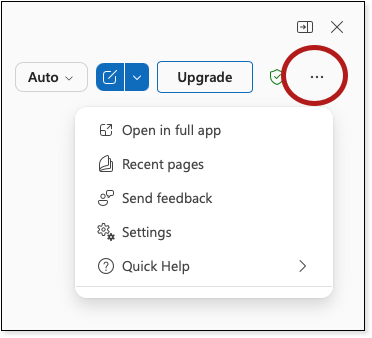
Select .
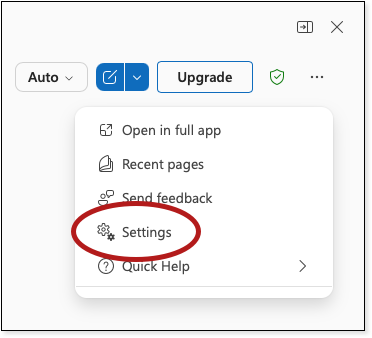
Select .
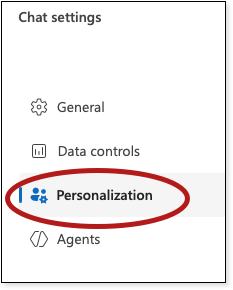
At the bottom of the list, select .
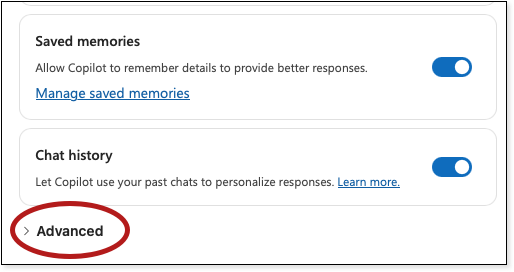
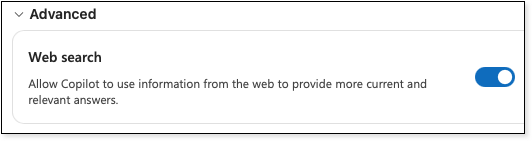
Toggle the Web Search button to the left. (This image shows web search is ON.)
Where Copilot Looks
Copilot will draw information from your files stored in Outlook, OneDrive or SharePoint, SharePoint sites, as well as Teams meetings, chats, and channels that you are a member of.
Specify Where Copilot Looks
You can ask Copilot to focus its search to specific files or Microsoft services. To access this feature:
At the bottom of the Copilot dialog box, click the and select
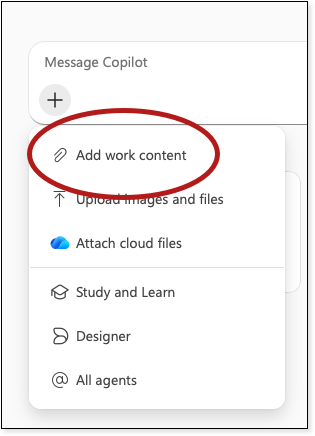
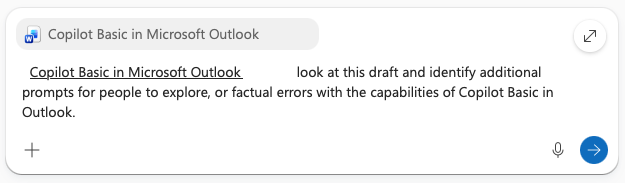
Pick from the list of available resources (Files, People, Meetings, etc.) and then add a specific resource (file name, person, meeting, and so on).
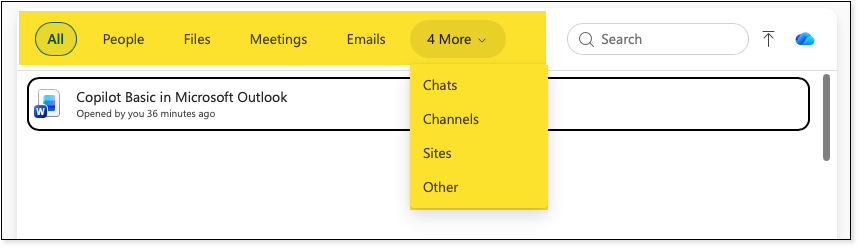
Copilot will then answer your prompts focusing on the resources you picked.
Ways You Can Use Copilot
Here are some prompt ideas to get you started using Copilot in Outlook.
Draft and Summarize Emails
Look at communications that I've had with Touchdown the Bear over the last two weeks. Analyze their communication style. Draft an email proposing a change in third down plays that will resonate with them.
Summarize my emails with A.D. White over the past month. Highlight any action items created by either of us.
Review this email for grammar, spelling, and tone. It should be appropriate for a senior faculty member at Cornell.
Summarize Documents and Discussions, and Meetings
(Drafted with an assist from Copilot.)
- “Summarize my conversations, emails, and meetings with [person] about [project].”
- “What has [person] asked me to do in the last two weeks?”
- “What patterns do you see in this conversation?”
- “Summarize the main concerns raised in these emails.”
- Using my emails, Teams chats, and meeting notes on this topic, create a brief summary I can send to leadership that includes:
- timeline of key events
- current status
- recommended next steps
Record and Summarize Meetings
You need to have meeting notes or a recording for Copilot to reference for this task. Go to --> and then prompt:
- "Create a summary of this meeting.”
- "Summarize any action items"
- "Summarize action items assigned to me"
Data Privacy
When you use Copilot, it has access only to the information in your Microsoft environment. However, some of that information may be sensitive or private. Refer to Copilot and Moderate Risk Data for more information.
Information that Copilot finds in the Cornell Microsoft environment is only used in the Cornell environment, and information is not sent outside of that in public web searches.
It is possible for you to inadvertently tell Copilot to take data and search the public web. You can help mitigate this risk by turning off web search in Copilot (refer to the instructions above).
Do not ask Copilot to reference high-risk data.
Microsoft Copilot Chat Special Interest Group (SIG)
Join the Questions and Answers teams channel of this SIG to ask questions about using Copilot, and to share your tips, tricks, or even frustrations.
Comments?
To share feedback about this page or request support, log in with your NetID