
Zoom Notes
Zoom Notes provides a built-in tool for capturing ideas, organizing information, and creating meeting notes for online meetings inside or outside of Zoom.
This article applies to: Zoom
To Enable Zoom Notes
Meeting Owners
Use this link to open the Notes tab in your personal settings. (Opens in a new window.)
In the panel that opens, look for Enable My Notes at the top and click the toggle to the right to enable.
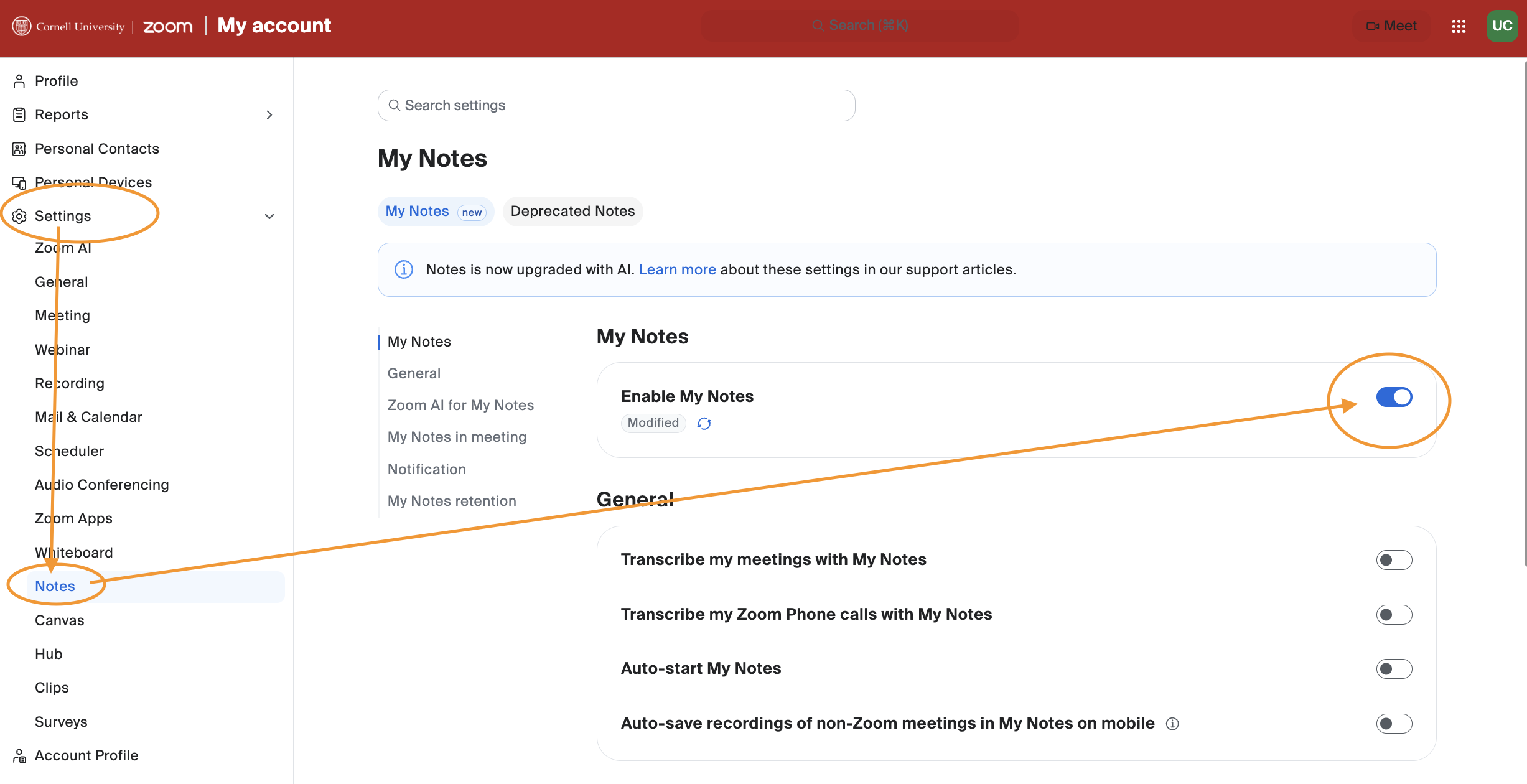
Then, you can review and enable any of the subsequent options below such as Transcribe my meetings with My Notes which includes options to take notes for Zoom or other meetings like Teams or Google Meet.
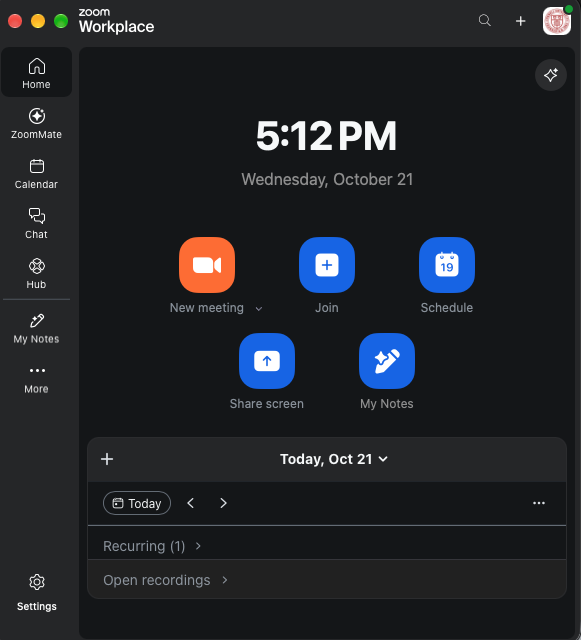
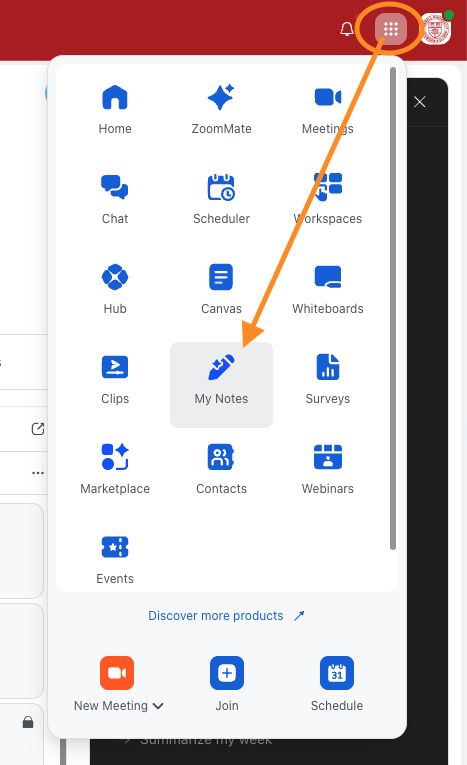
Once you have enabled Notes you will see the "My Notes" feature appear in your Zoom app or on cornell.zoom.us, which is where you can create new notes and interact with previous ones that you have saved.
Participants
If you have enabled Notes you can activate them in a meeting you do not own, but you will need the owner's permission to do so. Owners can disable the option in their own meeting settings.
What You Can Do with Zoom Notes
You can use Zoom Notes in several ways:
- Create and organize personal notes before, during, or after meetings.
- Collaborate on notes with other meeting participants in real time.
- Generate transcripts, summaries, key takeaways, and action items using Zoom's AI capabilities
- Have a Zoom My Notes agent attend non-Zoom meetings (like Teams)
- Use Zoom My Notes from the desktop application to capture a transcription of non-Zoom meeting and/or in-person meetings
Privacy and Meeting Controls
While Zoom Notes can generate transcripts and AI-generated summaries, it does not automatically gain access to meeting content.
Zoom meeting hosts continue to control whether meeting transcription and AI note capture can be used during their meetings. By default, participants cannot generate transcripts or AI summaries unless the host enables and authorizes those capabilities.
Comments?
To share feedback about this page or request support, log in with your NetID