
New and Updated Features for Microsoft Teams - July 2026
In July 2026, nine new or updated features were announced for Microsoft Teams.
This article applies to: Microsoft Teams
Microsoft Teams continues to add useful features. For more information about these updates, see their Service Enhancements and Changes channel. The nine significant updates for July 2026 include:
Choose "Enter" Key Behavior in Teams Chat Settings
Microsoft is adding a new setting in Microsoft Teams for Desktop and Web that lets users select what happens when they press Enter while composing a message. This update responds to customer feedback for more control and helps prevent accidental message sends. It also aligns Teams with behavior in other messaging apps, creating a familiar and predictable compose experience.
Who is impacted?
All Microsoft Teams users on both Desktop and Web.
What will happen?
This setting applies only to Desktop and Web, is per-user, and will roam across devices. Teams will show contextual hints near the compose box as reminders of the current behavior.
- Look for the new setting under Settings > Chats and channels: “When writing a message, press Enter to…”
- Choose:
- Send the message (default).
- Start a new line. If choosing this option, the new keys to send the message will be Ctrl+Enter or Cmd+Enter.
- Regardless of selection, Shift + Enter will always insert a new line.
Improvements to "Activity in Other Accounts and Orgs" Panel
Community members who have been invited to access Teams in multiple organizations, such as Weill Cornell Medicine or another university, will appreciate this improvement for effortless connectivity with cross-tenant activities. It consolidates detailed activity notifications from multiple tenants into a single place, reducing the friction of switching between accounts and helping individuals remain informed and engaged without disrupting their workflow. This panel is available on Microsoft Teams for Desktop (Windows and macOS) only.
How it works:
- Panel entry point icon: Appears in the Teams sidebar when you’re signed into multiple accounts or organizations. You will not see the activity panel if you don’t have access to other organizations or accounts.
- Notification badge: Shows the count of total new activity notifications from all other accounts and organizations.
- Panel behavior: Click on the entry point icon to see activity notifications across different accounts and organizations grouped by each tenant.
- Activity in new window: Clicking a notification opens that chat or channel in a separate child window without switching tenants in the main app window.
- Missed activity: An account or org appears in the Activity in other orgs or accounts panel only if you have missed activity notifications from that org. If you have no missed activity across all tenants, that hub shows that you’re all caught up.
- View all your accounts and organizations: Click on your profile picture in the top right corner in Teams to view all your accounts and organizations that you are signed in with.
Interacting with activity notifications in the panel:
- Structure: The activity in Other Accounts and Orgs panel has the name of the tenant with activity notification details listed below. The tenant’s name also has the account, switch button, and a pin icon next to it.
- Switch tenant button: Switches the main app window to that tenant.
- Pin icon: Pins the tenant to the left sidebar on Teams.
- Open details: Clicking a notification opens it in a separate window without switching tenants in the main app window.
- Counts stay until interacted with: Viewing activity notifications in the panel doesn’t mark items as read; they clear when clicked in the panel or viewed in that tenant’s main Activity app.
- Notifications per tenant: Only 10 notifications are shown per tenant in the panel with an option to view all notifications.
Pinning tenants:
- Individuals can pin up to three tenants to the left sidebar for quick access.
- Pinned tenants appear as icons in your sidebar with their own unread badge.
- Pinned tenants remain in the sidebar regardless of whether they have missed activity notifications.
- Clicking a pinned tenant shows activity notifications for that tenant only.
- Notifications from pinned tenants do not show in the Activity in Other Accounts and Orgs panel.
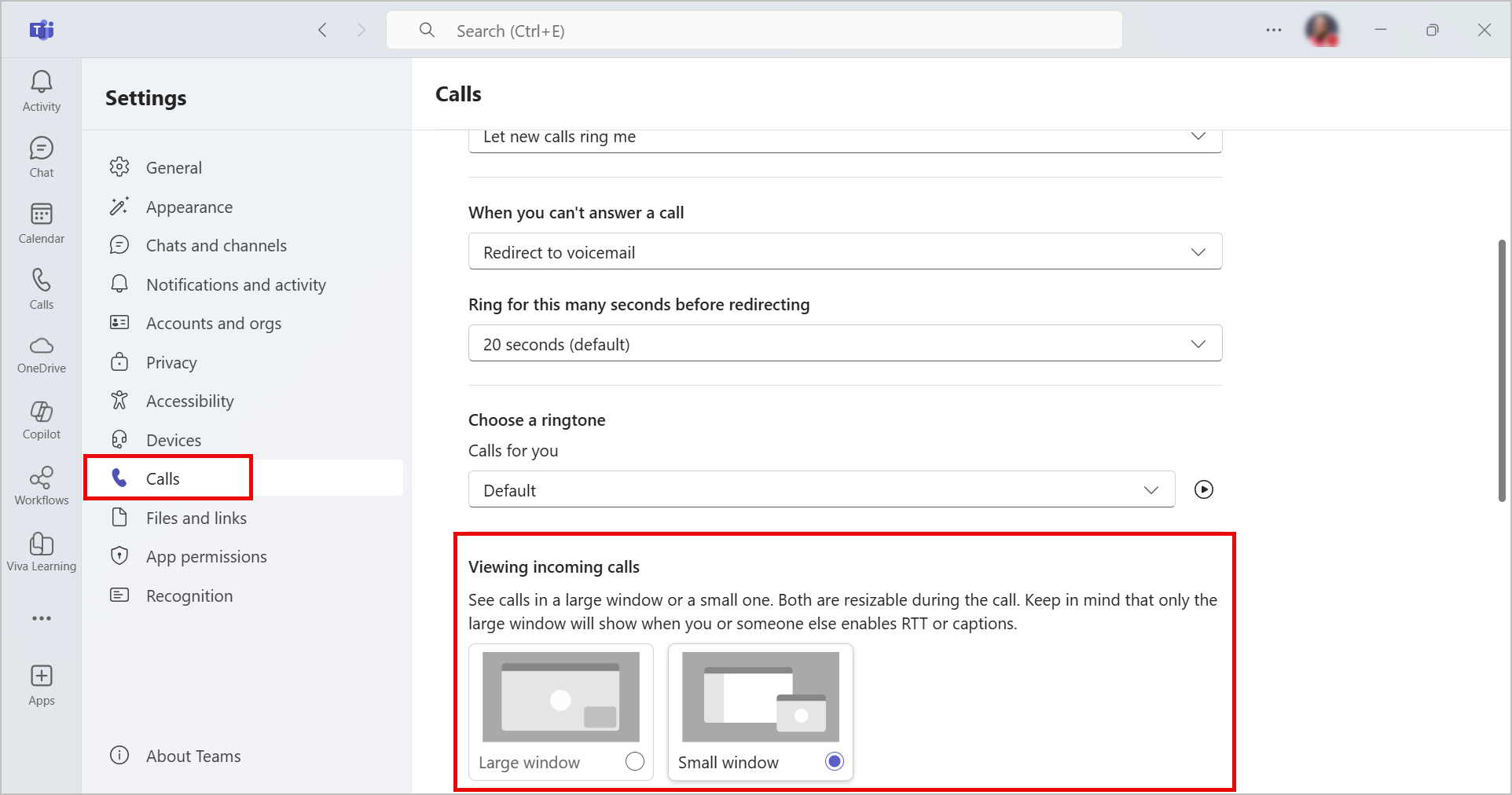
New Setting to View Incoming Calls in a Small Window
A new setting allows Microsoft Teams users to view incoming calls in a small window to prevent disruptions. Individuals will be able to take a call in the small window and continue to see what they were working on before the call.
This message applies to Teams on Windows desktop, Teams on Mac desktop, Teams for the web, and Teams for iOS and Android.
How does this affect my organization?
- Before this rollout: Teams users may be interrupted by the larger incoming-call window.
After this rollout: Teams users can turn on this setting to view calls in a small window. Note that both large and small windows are resizable:
Shorter Meeting URLs
Microsoft is reducing the length of Microsoft Teams meeting URLs for easier sharing. This rollout applies to all Microsoft Teams platforms (Teams for iOS, Android, Mac, Teams devices, desktop, and web).
How does this affect my organization?
The new URL syntax is: https://teams.microsoft.com/meet/<meeting_id>?p=<HashedPasscode>
?p= " To make meeting URL shorter, Microsoft is removing several parameters such as tenant ID, conversation ID, etc. This change serves two main goals:
- Improving usability of URL during sharing.
- Making the URL more secure and less susceptible to malicious attacks.
Expiration details:
- If the meeting organizer gets removed from the tenant, the links to the meetings scheduled by that individual automatically expire.
- MeetNow meetings expire 60 days after creation. Learn more about expiration timelines for different types of meetings.
With the Short Meeting URL release, expiration limits will apply to all newly created links.
Once the change to Short Meeting URL is released, all newly created meetings will expire as described in the documentation: 60 days after meeting ends for scheduled meetings and 60 days after creation for MeetNow meetings. Once this expiry period is over, in case someone clicks the link (e.g. outside of Teams app OR in the meeting details inside Teams calendar section), they will be unable to join the meeting.
Code Block Line Numbers & Improved Keyboard Accessibility
Microsoft is introducing improvements to the code block experience in Microsoft Teams Compose. These updates make reading, sharing, and referencing code more efficient by adding default line numbers and enhancing keyboard navigation. These changes also support better accessibility and help users who frequently share code in chats or channels.
This message is associated with Microsoft 365 Roadmap ID 554933.
How does this affect my organization?
Microsoft Teams users will see enhancements to the code block experience, including:
- Default line numbers appearing automatically when a code block is inserted, supporting easier line-by-line collaboration and review.
- Improved keyboard navigation within code blocks, allowing users to move more easily through code using keyboard commands, improving overall accessibility.
- Consistent language selection for syntax highlighting; Teams will remember the last language a user selected.
- Support for collaborative editing, with the option to convert a code block to a Loop component before sending.
- Multiple insertion methods remain supported (slash commands, keyboard shortcuts, and Markdown), ensuring familiarity and flexibility for users.
- This feature is enabled by default, and no admin controls or configuration changes are required.
These updates improve the development and engineering collaboration experience in Teams and help achieve better parity with other industry-standard collaboration tools.
Learn more: Use code blocks in Microsoft Teams | Microsoft Support.
Meeting Participants Can Request Collaborative Annotation Sessions
All meeting participants joining from native apps on Windows and macOS will be able to request to start collaborative annotations when a screen or window is being shared. The annotations start only after the active sharer approves the request. This capability is available exclusively in the new Microsoft Teams experience on native Windows and macOS apps.
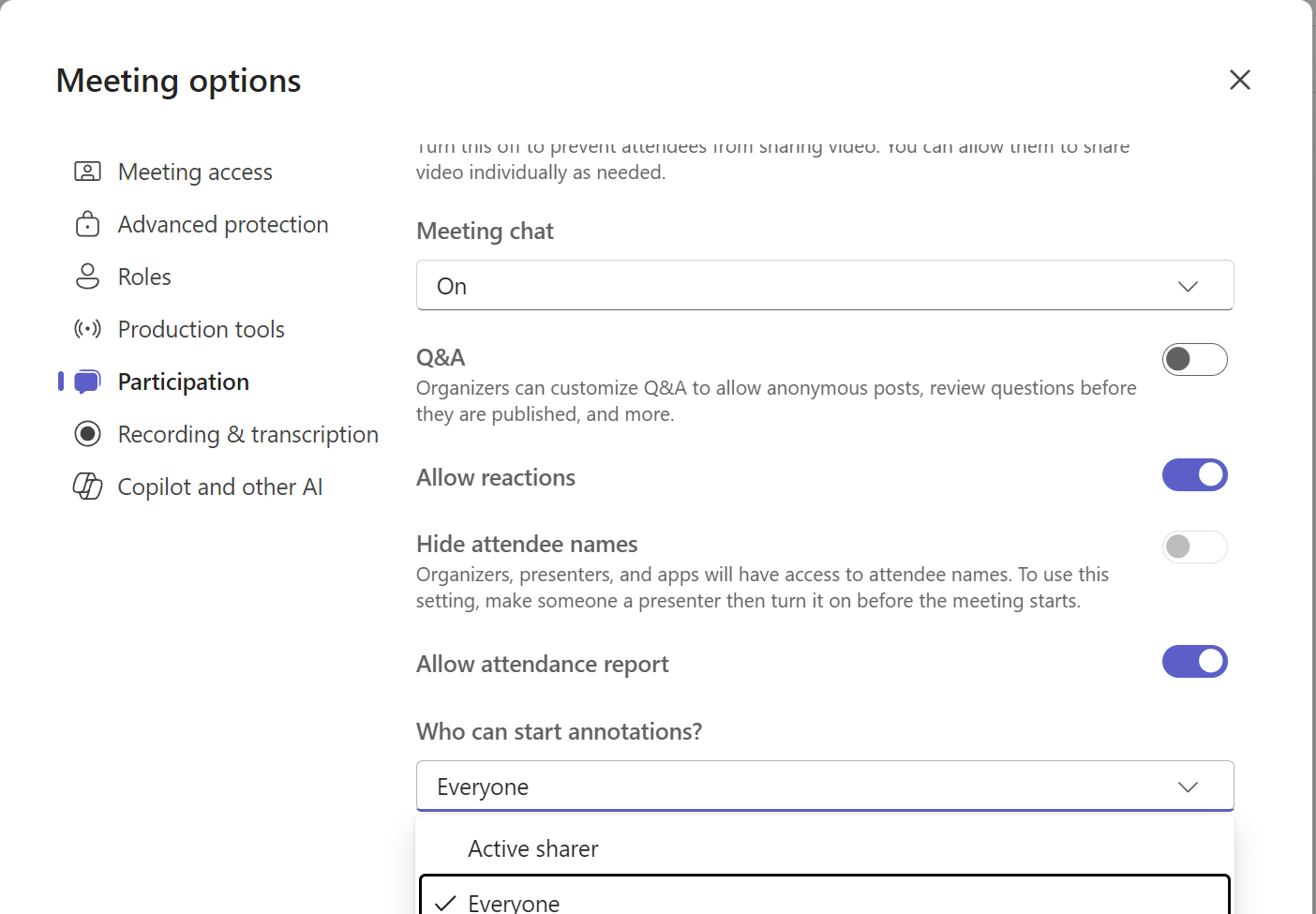
This release also introduces a meeting option in the Participation section, allowing organizers and co-organizers to choose who can start annotations. By default, "Everyone" can access the "Start Annotation" button, but organizers and co-organizers can limit it to just the "Active Sharer", making the button visible only to the person currently sharing their screen or window.
How will this affect my organization?
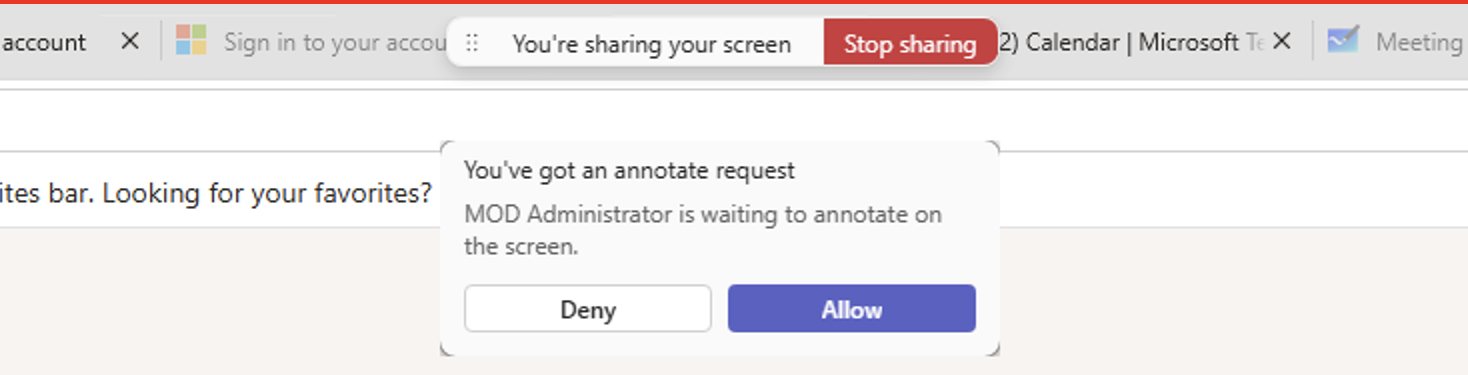
After the rollout, meeting participants who are not sharing their screens will have the ability to request an annotation session. This request will be sent to the presenter sharing their screen, who can choose to accept or deny it.
Meeting Organizer Settings in Meeting Options
A new "Who can start annotations?" option appears under the Participation section in Meeting Options. Organizers and co-organizers can select:
- Everyone (default) — All participants see the "Start Annotation" button.
- Active Sharer — Only the person currently sharing sees the annotation button.
Participant annotation request flow:
When a participant who is not the active sharer wants to annotate, they click the "Start annotation" button in the meeting toolbar. A confirmation dialog appears, and once the participant clicks "Request", a notification is sent to the presenter for approval.
- Click the "Start annotation" button in the meeting toolbar to initiate an annotation request.
- Confirm the request in the dialog box. Once approved, an annotation request will be sent to the active sharer. A "Request Sent" notification confirms that the request is pending and awaiting presenter approval.
- Request sent notification confirms the request is pending, and the presenter needs to approve it.
Presenter approval experience:
The active sharer (presenter) receives a notification at the top of their screen indicating that a viewer wants to start annotations. The presenter can choose to Deny or Allow the request.
Test Microphone and Speaker Before Joining a Meeting
Microsoft Teams will introduce the ability for users to test their microphone and speaker before joining a meeting. This improvement helps users confirm that they have selected the correct audio devices, reducing audio issues and helping meetings start on time with fewer disruptions.
Automatic Removal of EXIF Data from Shared Images
Microsoft Teams will automatically remove hidden metadata (EXIF) from images shared in chats and channels. This helps protect sensitive details such as photo location and device information from being shared without user awareness, improving privacy and security.
New Controls for Quick Views in the Chat List
Currently, Teams chat and Teams apps users see a set of quick views displayed above the lists of chats and channels. These quick views are always visible for all users, regardless of whether they contain messages.
With this feature update, quick views will appear only when they contain messages, and Microsoft Teams users will have new controls to manage how their quick views behave:
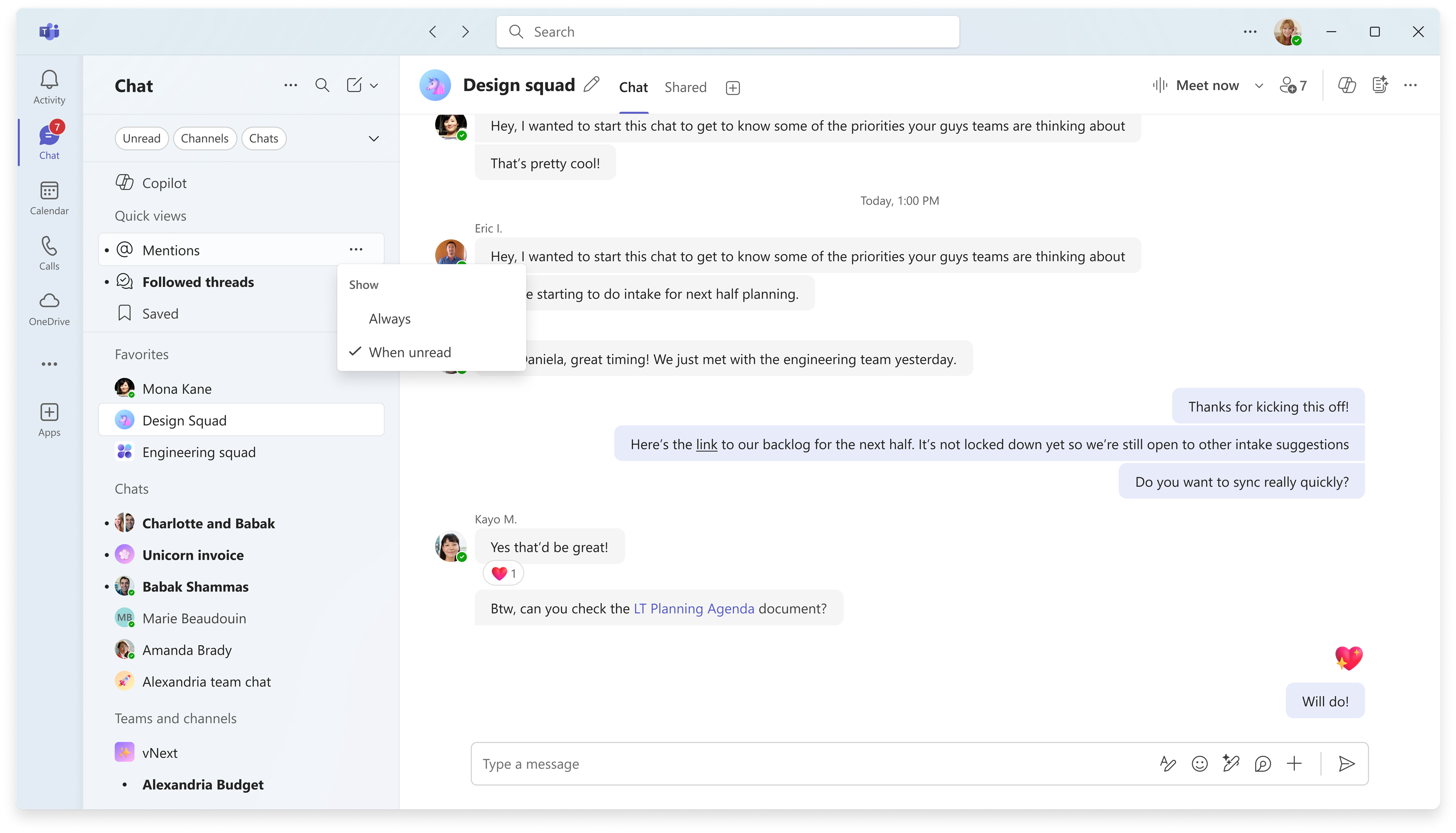
- Quick views such as Mentions, Followed threads, and Tag mentions will, by default, appear only when a user has at least one message associated with that view.
- Teams users will be able to adjust each of these quick views from the context menu, including the ability to show them only when unread messages exist.
- Quick views such as Saved will be configurable to show always or be hidden.
- Hidden quick views will be accessible by selecting the eye icon next to the Quick views header.
- The Quick views section will be collapsible, and the header will appear in bold when any quick view contains unread messages.
Comments?
To share feedback about this page or request support, log in with your NetID