
Add or Remove Tools From the Microsoft Ribbon
Instructions to adjust what you see on your Microsoft ribbon in the desktop version of Excel, Word, Outlook, or other Microsoft applications.
This article applies to: Microsoft Copilot Basic , Microsoft 365 Productivity Bundle , Microsoft Outlook
This information applies only to the desktop versions of Microsoft products. The online versions do not currently offer the option to customize your ribbons.
Microsoft allows you to customize each app's ribbon independently, so changes you make in Word will not carry over to Excel (for example).
Show the Ribbon Options
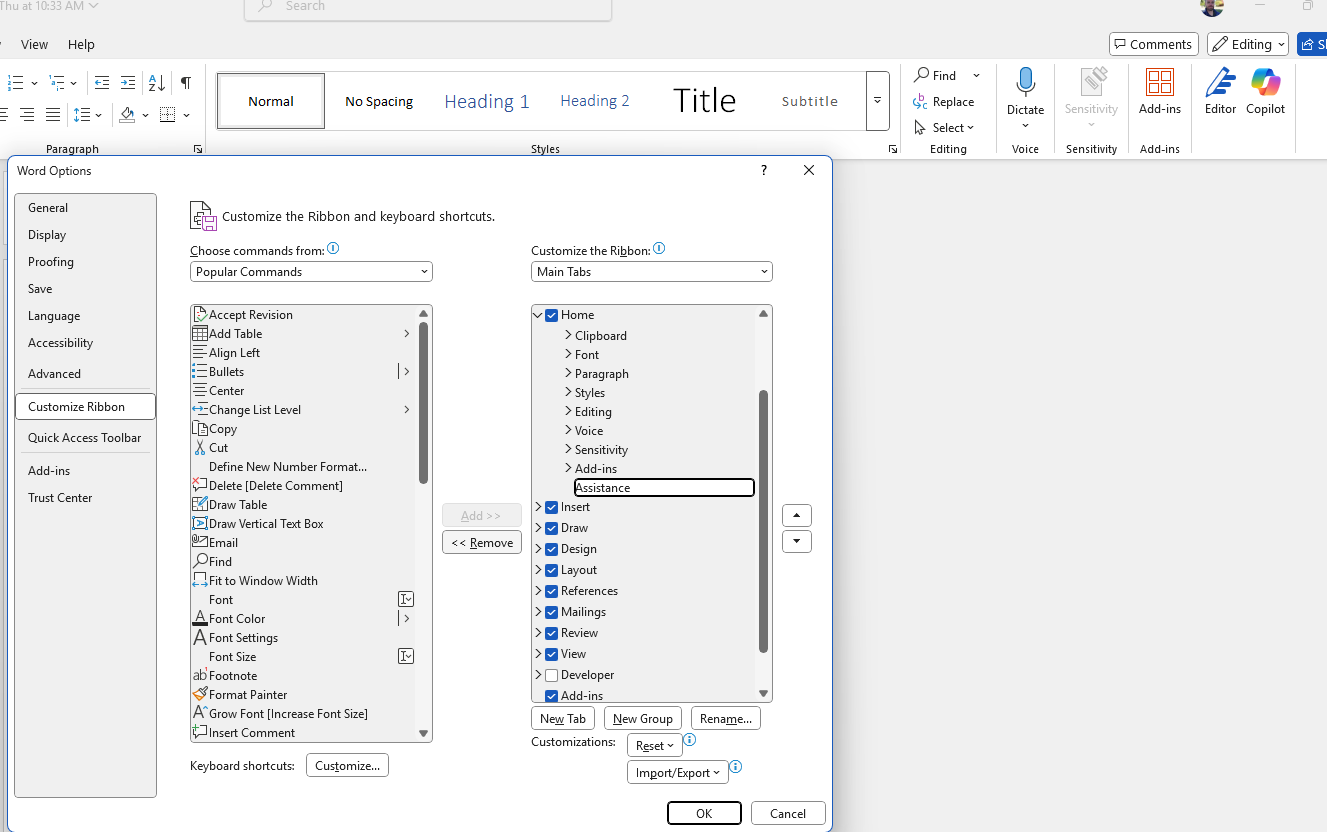
Right-click on your app's ribbon and select Customize the Ribbon.

The screen that displays next offers two columns. The left column contains the possible commands you can add. The right column displays the current ribbon setup.
Remove a Tool
This example shows how to remove the Copilot button from your ribbon. To do so:
- Click Assistance in the right column.
- Click the button. You should see Assistance disappear from the right-hand list.
- Click .
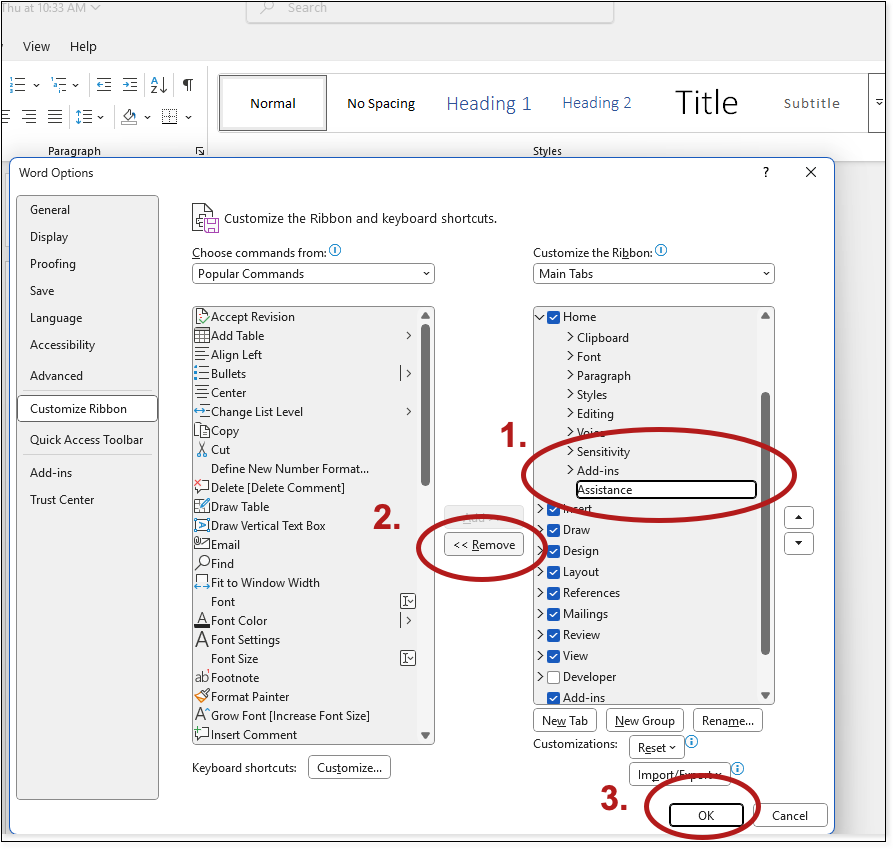
Use these same steps to remove any other tool that you don't want to show in your ribbon. For more details about the ribbon, refer to Microsoft's documentation.
Add a Tool
This example shows how to show the Copilot button on your ribbon. To do so, first show the ribbon options (see above). And then:
- Find the tool that you want to add. You may need to use the drop-down at the top to pick a specific set of tools.
- Click on the tool you want to add (in this case, Assistance).
- Click the button.
- Click .
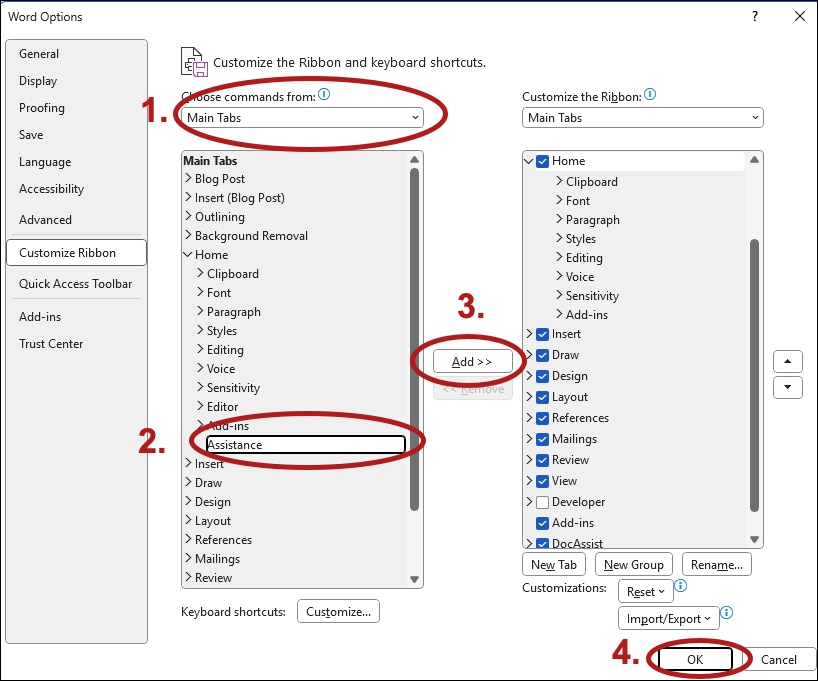
Use these same steps to add tools that you want to show in your ribbon. For more details about the ribbon, refer to Microsoft's documentation.
Reset the Ribbon Tools
If you want to reset your ribbons and start over, you have two options:
Completely reset all settings
This resets all the tools in all of your tabs.
- Show the ribbon options (see above).
- In the Customize the Ribbon window, select .
- Select Reset all customizations.
- Click .
Reset settings on one tab
This resets the tools in only the tab you select.
- Show the ribbon options (see above).
- In the Customize the Ribbon window, select the tab that you want to reset from the left-hand column.
- Select .
- Select Reset only selected Ribbon.
- Click .
Comments?
To share feedback about this page or request support, log in with your NetID