
Access Your Copilot Chat History
This article applies to: Microsoft Copilot Basic
Chat History in Edge
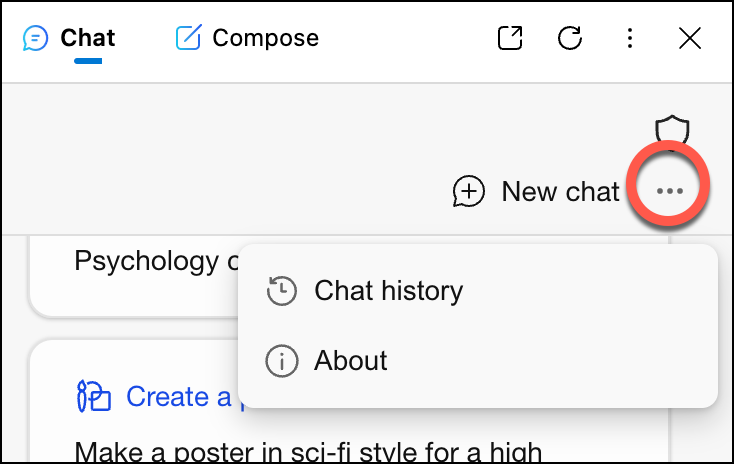
Click on the next to New chat. This will allow you to access your chat history.
All Other Browsers
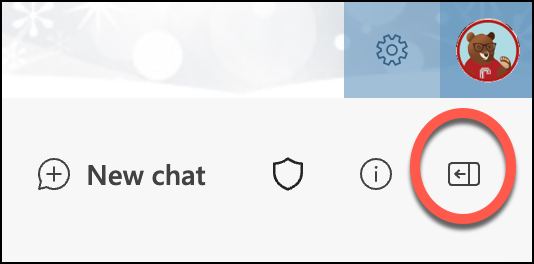
Use the doorway with an arrow icon located directly under your avatar to open your chat history.
Delete Your Chat History
You can delete individual chats, or your entire chat history.
Remove individual chats
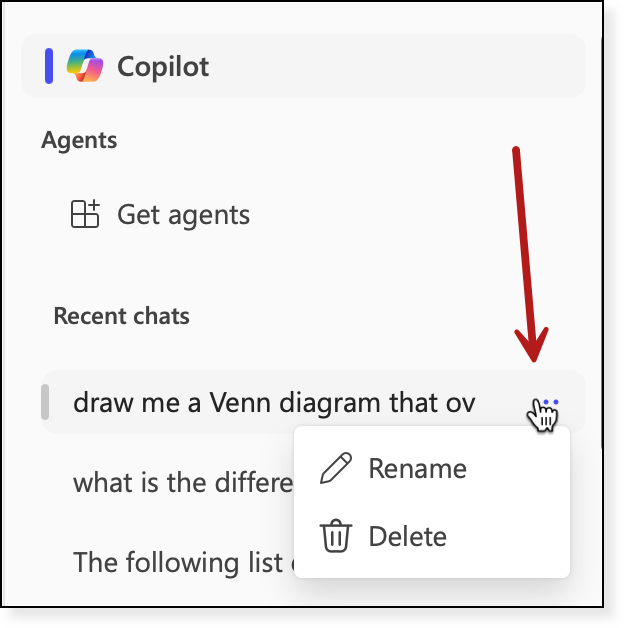
In your chat history bar:
- Hover over the chat conversation you want to delete;
- Click on the three horizontal dots;
- Select Delete.
Delete your entire chat history
You can delete your entire chat history by following these steps from Microsoft. If you choose to do this:
- Make sure you have signed in with the appropriate account (Cornell versus personal)
- Be aware that it may take a couple of days for the request to process
- If you use Microsoft 365 Copilot in other apps, it will delete those chat requests as well.
Files that you uploaded to the chat
When you add a file to Copilot, Microsoft stores that file in your OneDrive account. When you delete a chat, the file remains in your OneDrive, in a folder called Microsoft Copilot Chat Files.
Comments?
To share feedback about this page or request support, log in with your NetID