
Saving Chats From Sandbox AI
This article applies to: Generative AI Basic , Microsoft Copilot Basic
Download a Chat that You Want to Save
- Click on the chat in the left-hand pane.
At the top right of the page, click the triangular icon with three dots and choose “Export”.
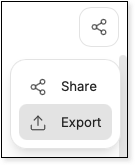
- Export your chat as a .txt file.
- Be sure to save any attached files that you used in your chat.
Re-Create the Chat
These are general instructions for Copilot, Claude, and ChatGPT. Before re-creating a chat in these environments, please review the data risk guidelines for each tool (found in the links directly above).
- In your Cornell-provided tool, start a new chat and try using the following prompt:
this file is an exported chat from a different environment. Import and recreate the conversation for me
- BEFORE you send the prompt, use the + symbol to upload the .txt file that you exported from Sandbox.
- If you had attached data files in your original prompt, attach them as well.
- Send the prompt.
- Review the results.
- You should now be able to resume your conversation using this chat.
Comments?
To share feedback about this page or request support, log in with your NetID