
Connect to Ethernet with Access Net (Windows)
In order to use the ethernet in your room, you need to register your computer before you can connect.
This article applies to: Wired Network
Step 1: Disconnect VPN and Turn Off WiFi
- Open the "Cisco Secure Client" application and click the disconnect button if you are connected.
Open the quick settings panel (network, sound, and battery) and enter the menu.
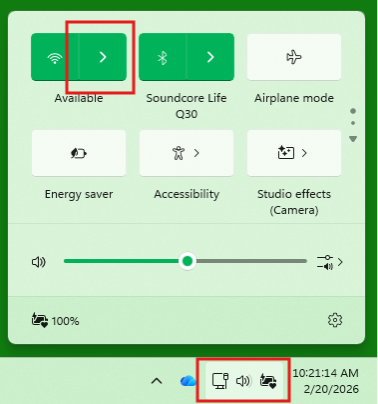
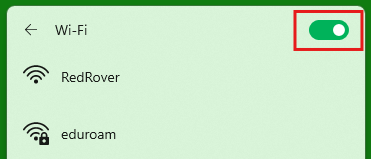
Turn off Wi-Fi by clicking on the toggle.
Step 2: Plug in the Network Cable
Plug the network cable into a docking station, USB network dongle, or an integrated network port on the computer.
If you are unable to identify a port to plug your network cable into, please contact the IT Service Desk.
Step 3: Register the Device
A registration page should open up automatically. If it doesn't, please click Cornell Network to connect. Your browser may show a "Not secure" warning, and the website address may be "www.msftconnecttest.com" instead of a cornell.edu address. This is normal and expected, and your data is secure.
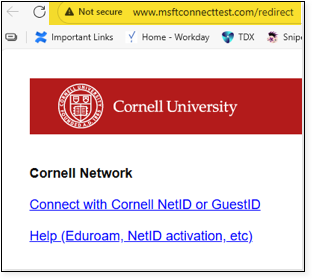
Click on . You will likely be asked to log in.
If you encounter a "Stale Request" error after logging in, disconnect the cable, close your browser entirely, reconnect the cable, then try again.
On the next page enter a description for your computer (for example, "work laptop").
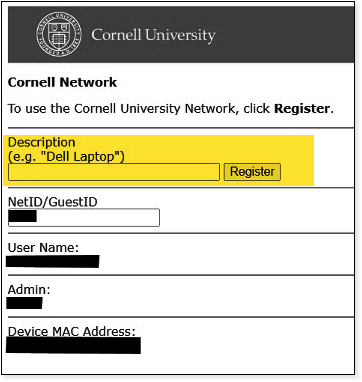
- Click .
Step 4: Confirmation
You should see a message confirming successful registration.
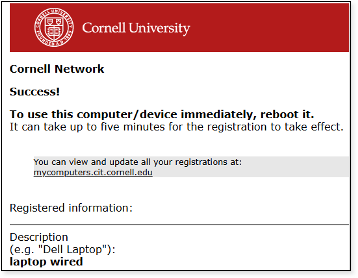
The connection should start working within 5 minutes. You can also force the computer to reconnect immediately by doing one of the following:
- Restart the computer.
- Disconnect and reconnect the network cable.
This symbol in the bottom right corner indicates a working wired connection:
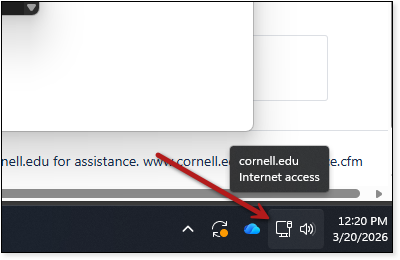
If you see that symbol, you should now be connected via the wired network!
If you encounter problems with your connection, please contact the IT Service Desk.
Comments?
To share feedback about this page or request support, log in with your NetID