
About Pathlock Cloud
Pathlock Cloud is a new, streamlined solution to support PeopleSoft Campus Solutions User Access Management. It replaces the previous Cynergy student user and data access request process. With Pathlock Cloud, the university has a supported, sustainable solution that enforces policy-based access controls, protects sensitive student data, and maintains a verifiable audit trail for all requests, ensuring compliance with Cornell user and data access management policies and audit requirements.
In alignment with the One Cornell approach, this process is supported by the Administrative Computing - Applications Security team at Weill Cornell Medicine.
There are three groups of activities involved in the Pathlock Cloud process:
- Staff who are requesting data access submit requests using an online form.
- Supervisors of those requesting or holding data access rights will need to approve / decline new requests, and will be required to periodically review and approve / decline existing data access rights.
- Central Office and Distributed Security Admins will review and approve all requests and are responsible for provisioning access.
See below for details on these steps.
Submit a Student Data Access Request
To request PeopleSoft Campus Solutions student data access:
- Complete the Pathlock Cloud online request form.
- Accept the Confidentiality Agreement.
After a requestor has completed these steps:
- Their supervisor and Central Administration offices (Admissions, Bursar, Financial Aid, and Registrar) will review, then either approve or deny the request.
- If approved, the request is sent to the Distributed Security Admins to review and provision the requestor with access.
Access requests are securely archived within Pathlock Cloud, preserving a complete audit trail and ensuring compliance with policy requirements.
About User Access Management (UAM)
When a user submits an access request:
- The user's supervisor will receive an email requesting the review and approval (or denial) of the request.
- If denied, the workflow ends.
- If approved, the request proceeds to the Central Admin offices for further review and approval.
- If approved by Central Admin Offices, the request moves to the Distributed Security Admins to apply the role(s).
Step-by-step instructions and screenshots are available below to assist supervisors with this process.
Respond to a User Access Request as a Supervisor
For supervisors responsible for approving the user access request:
- You will receive an email alerting you that an access request requires approval or denial.
Click the link in the email to open the request details.
![Interface showing expected email notification text for Data Access approval: "Someone who reports to you has requested access to Peoplesoft. Please visit your Pathlock Cloud Inbox to review the request and take action. From: [NAME], Title: e-Cornell Course Facilitator, Type: Access Request Peoplesoft, ID: {id no.], Go here to view the item: Click Here [link], Or go to your Pathlock Cloud Inbox to view all items that need your attention: Click Here [LINK]"](/sites/default/files/itc-drupal10-images/pathlock%201.png)
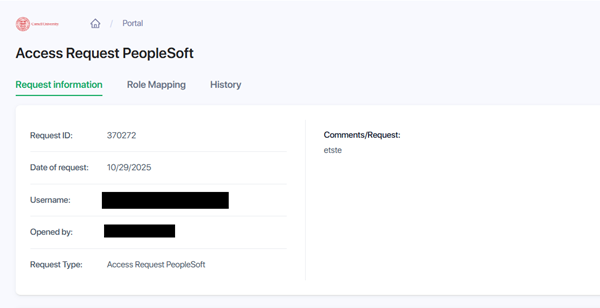
The portal’s Access Request screen provides details on the request and requestor.
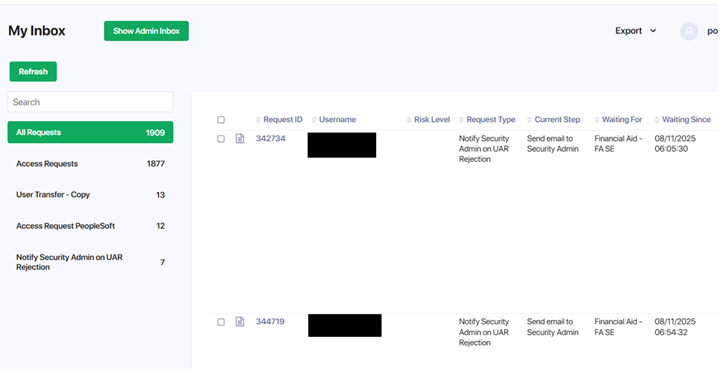
The Inbox provides a listing of outstanding access requests.
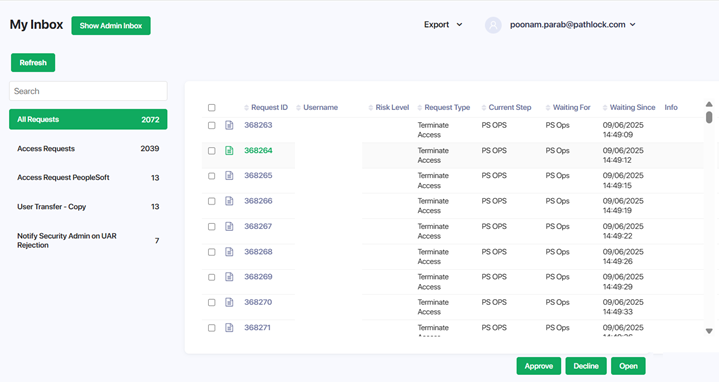
Select the listing for the specific request that you are going to review.

In the upper-right corner, select the green button. A pop-up window will appear.
From the Decision dropdown, choose either or .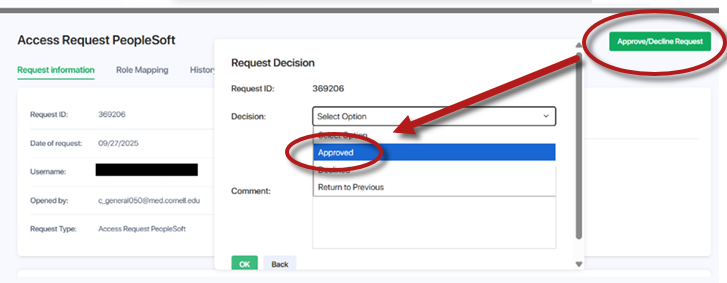
or
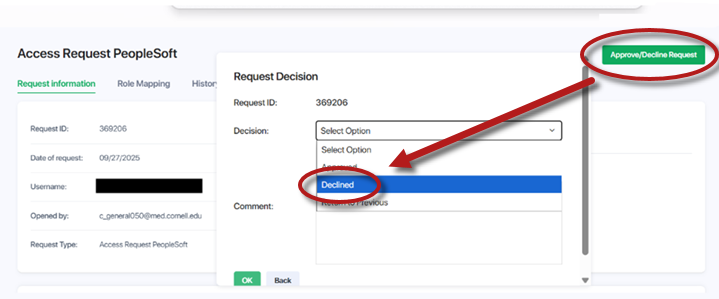
- Click to confirm. After you submit your decision, you will return to the Inbox.
About User Access Reviews (UAR)
University Policy 5.10 requires that all application user accounts and their associated privileges be reviewed on a quarterly basis. These periodic reviews help ensure compliance by detecting and addressing outdated, unnecessary, or excessive permissions. This process reduces the risk of unauthorized access and strengthens overall security.
- UAR campaigns will be run on a pre-defined cadence, as approved by IT Security, and can also be initiated manually within Pathlock Cloud.
- Supervisors will receive a list of their active users.
- Supervisors must review and either approve or deny each user’s existing access:
- If a supervisor designates a user’s access as approved, no further action is needed from the supervisor.
- If a supervisor designates a user’s access as denied, the workflow routes to the appropriate Distributed Security Admin for review and processing. The Distributed Security Admin will manually remove the roles. There is no further action needed from the supervisor.
Conduct User Access Reviews (UARs) as a Supervisor
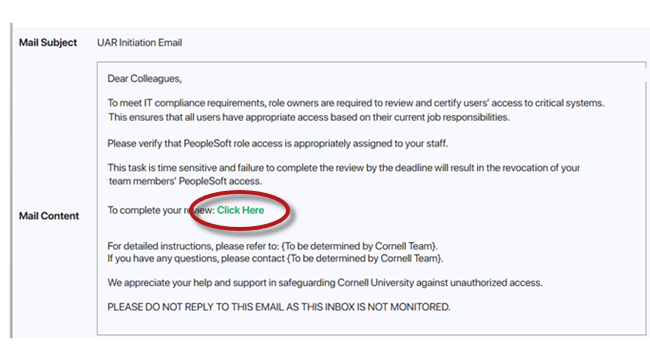
When a UAR campaign is launched, relevant supervisors will receive an email notification.
Select Click Here in the notification email to access your Inbox.
The Inbox lists pending requests.
Each row includes or radio buttons. For each request listing, select the appropriate radio button value.
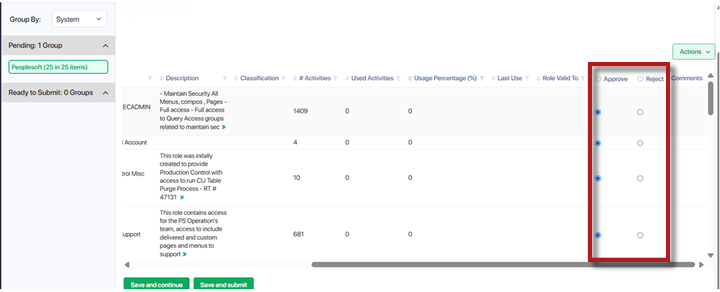
- After making your selections, select . You’ll be returned to the Inbox and your part of the process is complete.
Comments?
To share feedback about this page or request support, log in with your NetID